Choose inherited or custom permissions
Each doc and folder can follow its parent permissions or keep its own access settings.
Use inherited permissions
Section titled “Use inherited permissions”Use inherited permissions when a doc or folder should follow the access settings around it.
This works best when:
- A whole folder should be available to the same team
- New docs should automatically match the folder they are created in
- You want to manage access from one parent folder instead of each doc
When inherited permissions are on, Falconer shows where the access comes from.
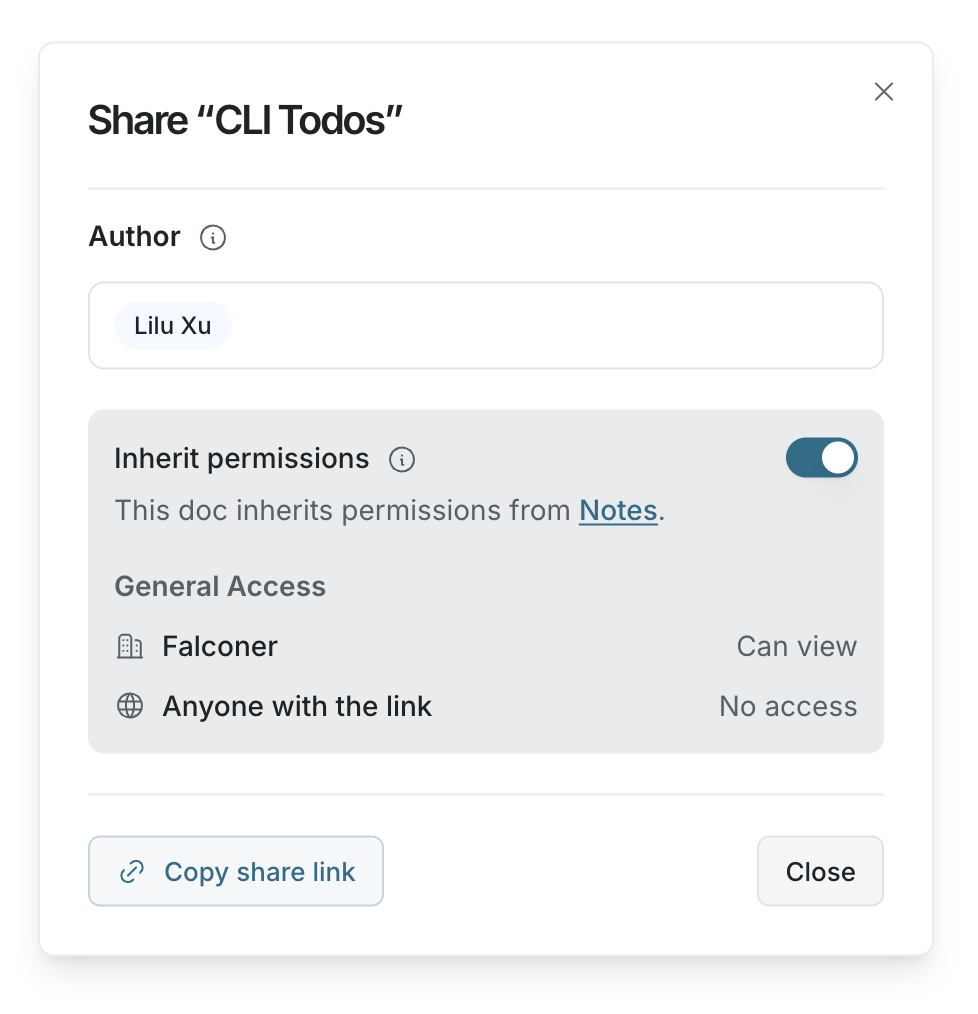
Use custom permissions
Section titled “Use custom permissions”Use custom permissions when a doc or folder needs different access than its parent.
This works best when:
- One doc is more sensitive than the rest of the folder
- A subfolder should be editable by a smaller group
- A doc needs link access, but the folder around it does not
- A doc needs a different author list
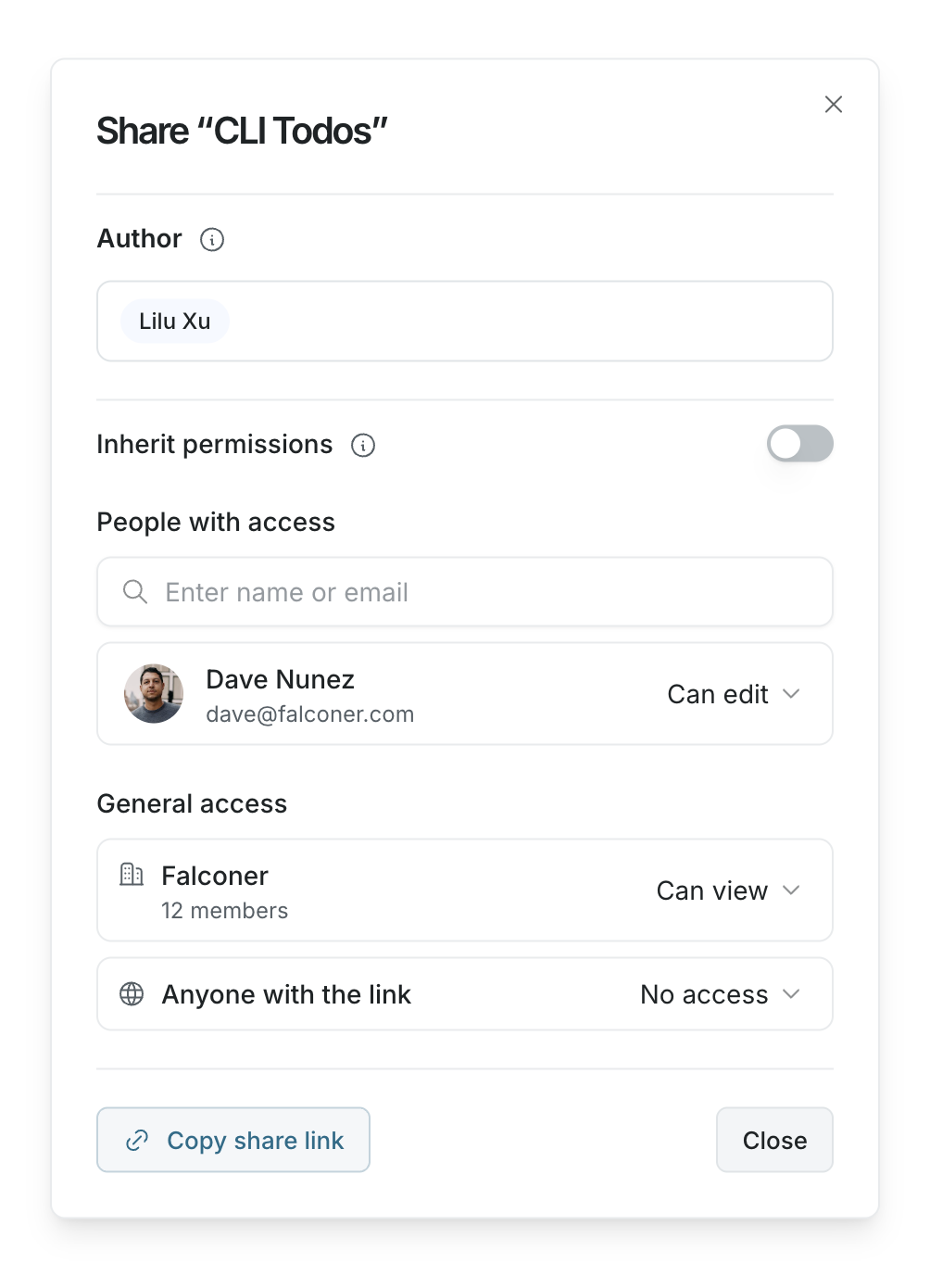
Turn inherited permissions off
Section titled “Turn inherited permissions off”To switch to custom permissions:
- Open the doc or folder share dialog.
- Turn Inherit permissions off.
- Review the copied access settings.
- Update people, groups, organization access, or link access as needed.
Falconer starts with a copy of the current effective permissions, so access does not unexpectedly disappear when you switch.
Turn inherited permissions on
Section titled “Turn inherited permissions on”To switch back to inherited permissions:
- Open the doc or folder share dialog.
- Turn Inherit permissions on.
The doc or folder stops using its custom access settings and follows the nearest parent permissions instead.
Choose the right approach
Section titled “Choose the right approach”| Situation | Recommended setting |
|---|---|
| Most docs in a folder should have the same access | Inherited permissions |
| A single doc needs different access | Custom permissions |
| A subfolder should manage its own docs | Custom permissions on the subfolder |
| You want future docs to follow a folder automatically | Inherited permissions |
If you are unsure, keep inherited permissions on and manage access from the folder.