Use organization bots with MCP
Use an organization bot to let autonomous agents read Falconer context without using a person’s OAuth session.
Organization bots work with the native local MCP server, @falconer/mcp. Use them for agent harnesses, sandboxes, CI checks, validation loops, and other read-only automation. Use OAuth instead when a human is operating the MCP client.
Create the organization bot
Section titled “Create the organization bot”Only organization owners can create organization bots.
- Open Falconer.
- Go to Settings → Organization.
- Find Bot API tokens.
- Click Create bot token.
- Enter a clear bot name, such as
Local agent botorCI validation bot. - Copy the token when Falconer shows it. You will not be able to see it again.
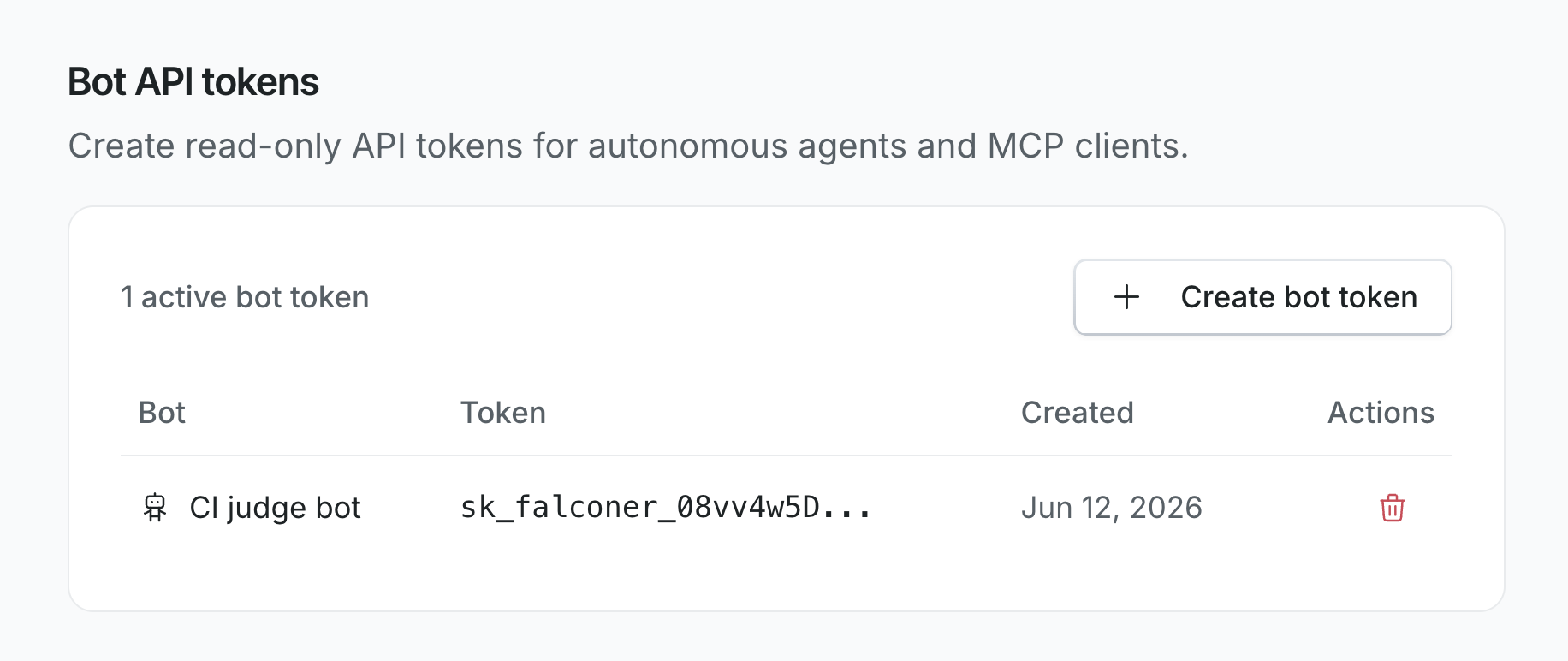
If a bot is no longer needed, delete it from Bot API tokens to revoke its access.
Configure the bot
Section titled “Configure the bot”Credentials file
Section titled “Credentials file”The native @falconer/mcp server reads Falconer credentials from:
~/.config/falconer/config.jsonCreate that file with the organization bot token:
mkdir -p ~/.config/falconerchmod 700 ~/.config/falconercat > ~/.config/falconer/config.json <<'JSON'{ "apiKey": "sk_falconer_REPLACE_WITH_YOUR_BOT_TOKEN"}JSONchmod 600 ~/.config/falconer/config.jsonFor local development or another Falconer deployment, add baseUrl. It should include /api, not /api/v1.
{ "apiKey": "sk_falconer_REPLACE_WITH_YOUR_BOT_TOKEN", "baseUrl": "http://localhost:3000/api"}Restart the MCP client after changing this file.
CLI alternative: Editing ~/.config/falconer/config.json is the clearest setup for organization bots. If you prefer to let the Falconer CLI write the same file, use API-key login instead of OAuth:
npx @falconer/cli@latest loginThe CLI may show a deprecation warning because OAuth is preferred for human users. Paste the organization bot token when prompted, then configure your MCP client to run @falconer/mcp as shown above.
MCP client
Section titled “MCP client”Add the local Falconer MCP server to your MCP client config.
For project-scoped clients such as Claude Code, place this in .mcp.json at the project root:
{ "mcpServers": { "falconer": { "type": "stdio", "command": "npx", "args": ["-y", "@falconer/mcp@latest"] } }}For Cursor, place the same server entry in .cursor/mcp.json:
{ "mcpServers": { "falconer": { "type": "stdio", "command": "npx", "args": ["-y", "@falconer/mcp@latest"] } }}If you install the package globally, you can use the binary directly:
{ "mcpServers": { "falconer": { "type": "stdio", "command": "falconer-mcp", "args": [] } }}Verify access
Section titled “Verify access”Ask your MCP client to search Falconer:
Search Falconer for our deployment runbook.Then read a specific document:
Read this Falconer doc: <url>If the bot has access, the client should return matching company-visible docs. If the bot tries to write, Falconer returns a read-only error.
Access and permissions
Section titled “Access and permissions”An organization bot can search and read company-visible docs in its organization, including docs that inherit organization-wide view access. It does not inherit any person’s private workspace.
Organization bots are read-only. Falconer rejects writes such as creating, updating, moving, or deleting docs; uploading media; changing permissions; or creating, editing, or resolving comments. Create separate bots for separate environments or agent roles.
Rotate or revoke a bot
Section titled “Rotate or revoke a bot”To rotate a bot credential:
- Create a new bot token.
- Replace the
apiKeyvalue in~/.config/falconer/config.json. - Restart the MCP client.
- Delete the old token from Bot API tokens.
Deleting a bot token revokes it immediately.