Invite teammates and manage permissions
Get your team into Falconer and control what they can see and edit.
Organization roles
Section titled “Organization roles”Falconer has two roles at the organization level:
| Role | What they can do |
|---|---|
| Owner | Invite and remove members; manage org settings; manage doc permissions |
| Member | Create and edit documents; access published company content |
Invite teammates
Section titled “Invite teammates”Only owners can invite new members. If you don’t see the option to invite a teammate, ask your org owner to send the invite.
-
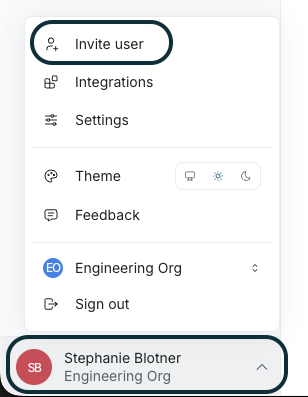
In the bottom left, go to Your org name -> Invite user.
-
Enter your teammate’s email address and select a role.
-
Click Invite.
Falconer sends the teammate an invite link valid for 7 days. Once they accept, they’re added as a member of your organization and can access all published company documents.
Manage permissions
Section titled “Manage permissions”Use permissions to control who can view, comment on, edit, and share docs and folders.
Start with Plan doc access to understand permission levels, inherited permissions, and custom permissions.
Then use:
- Share a doc – Manage access, authors, organization access, and link access for one doc.
- Manage folder access – Manage access for a folder and the docs that inherit from it.
- Choose inherited or custom permissions – Decide when a doc or folder should follow its parent permissions.
Publish to the company collection
Section titled “Publish to the company collection”Documents start in your Private collection, visible only to you. To make a document searchable and visible across your organization:
-
Click Publish at the top of the document.

-
Choose a location in the company collection. Falconer suggests one based on the content.
Published documents are accessible to all org members and surfaced by Falconer in search and Q&A.
Access requests
Section titled “Access requests”If a teammate tries to open a document they don’t have access to, they’ll see a Request Access button. This sends a Slack notification to the document owner, who can grant access directly from Slack – either for that individual or for the whole org.
Permissions and the Falcon agent
Section titled “Permissions and the Falcon agent”The Falcon agent only surfaces documents the requesting user has permission to see. Docs with restricted access won’t appear in search results or agent answers for users who don’t have access.