Share a doc
Use doc sharing when one doc needs its own audience, authors, or link access.
Open doc sharing
Section titled “Open doc sharing”- Open the doc.
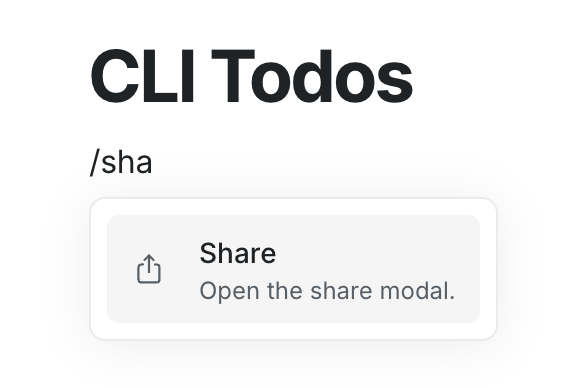
- Type /Share anywhere in the editor. Or Click … -> Share in the top right.
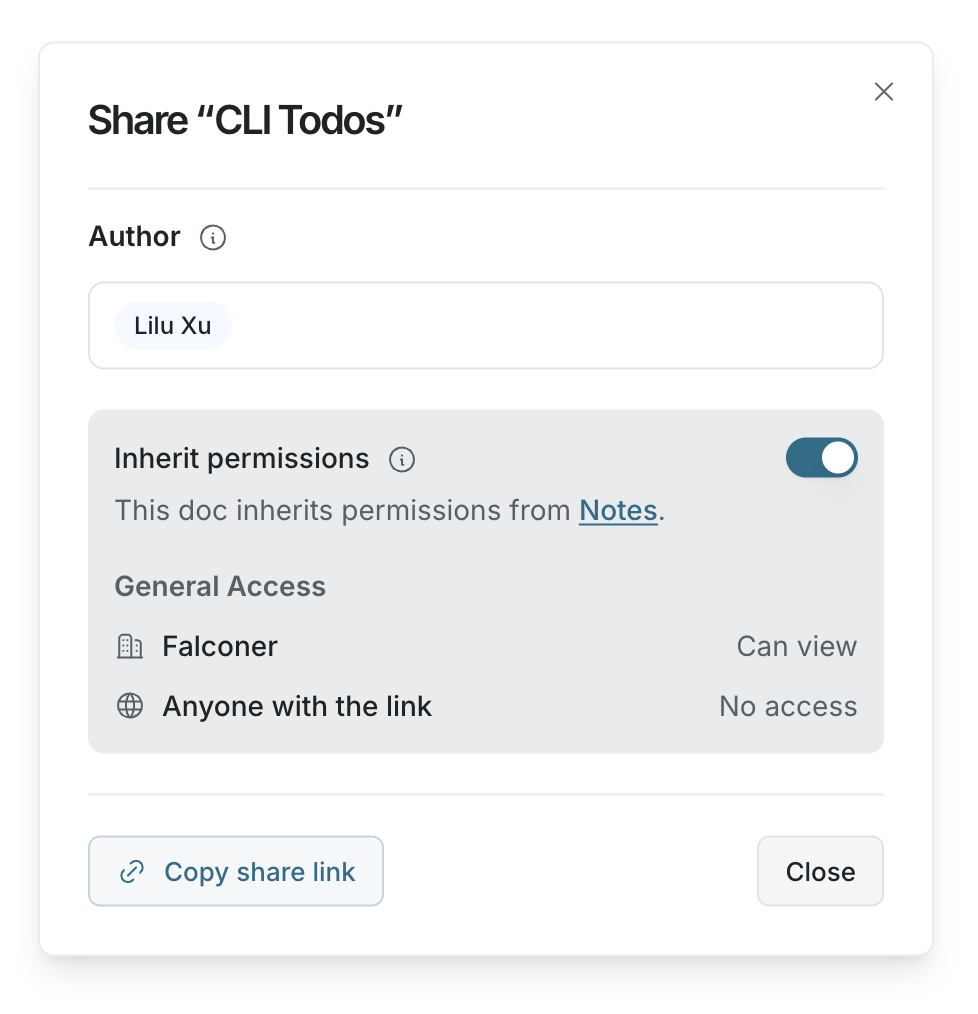
The share dialog shows whether the doc uses inherited permissions or custom permissions.
Use custom permissions
Section titled “Use custom permissions”If Inherit permissions is on, the doc follows permissions from its parent folder or section. Turn it off to set custom permissions for this doc.
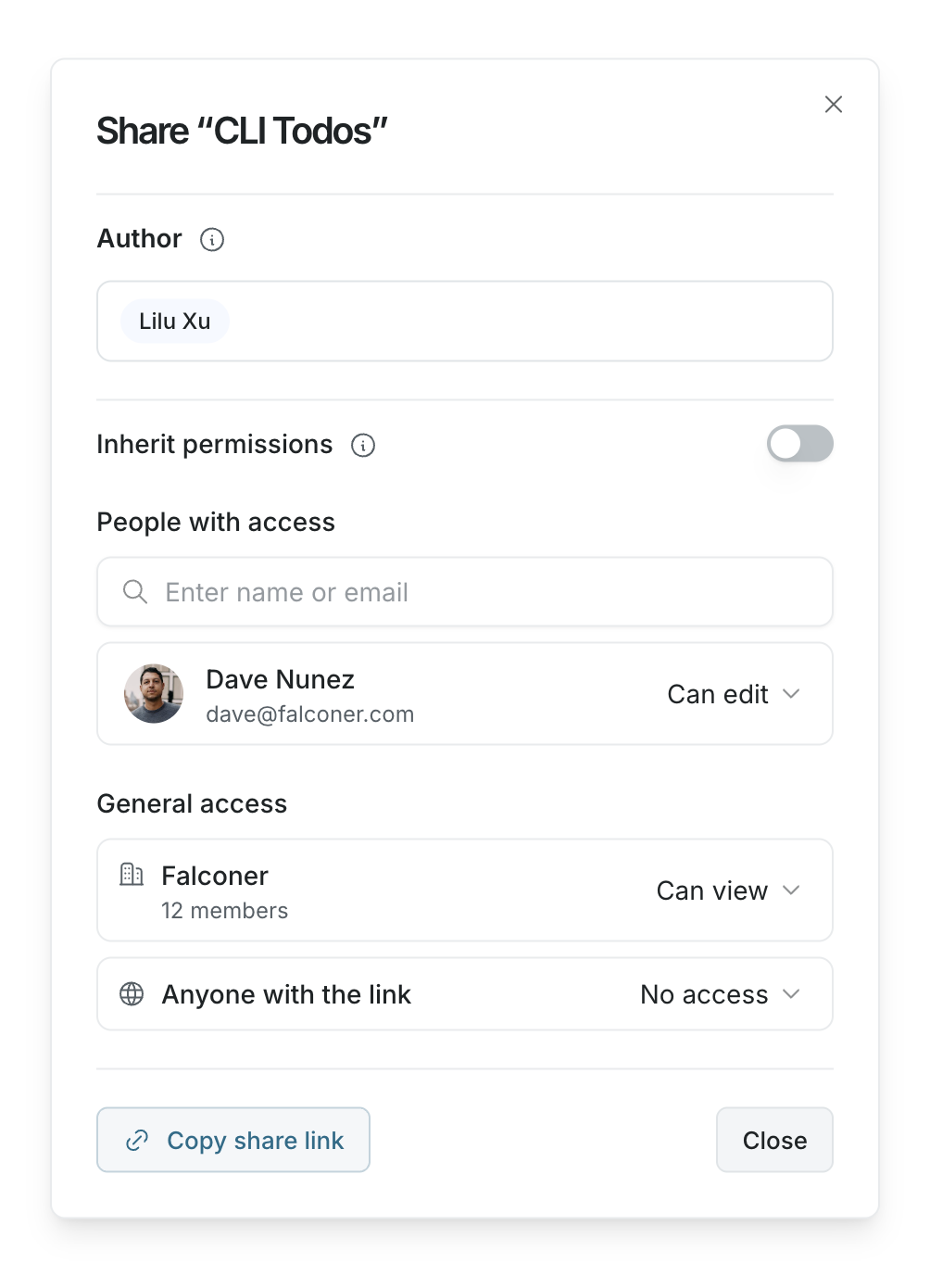
When you turn inherited permissions off, Falconer copies the current access into the doc. You can then update people, groups, organization access, and link access directly.
Add people or groups
Section titled “Add people or groups”- Under People with access, enter a person’s name, email address, or group name.
- Select the person or group.
- Use the permission menu next to their name to choose Can view, Can comment, or Can edit.
To remove access, open the same permission menu and choose Remove access.
Change general access
Section titled “Change general access”Use General access to choose broader access for the doc.
- Your organization controls access for everyone in your Falconer organization.
- Anyone with the link controls whether people with the doc link can open it.
For link access, docs can be set to No access or Can view.
Manage authors
Section titled “Manage authors”Authors are responsible for the doc. Falconer uses authors for doc review and update notifications.
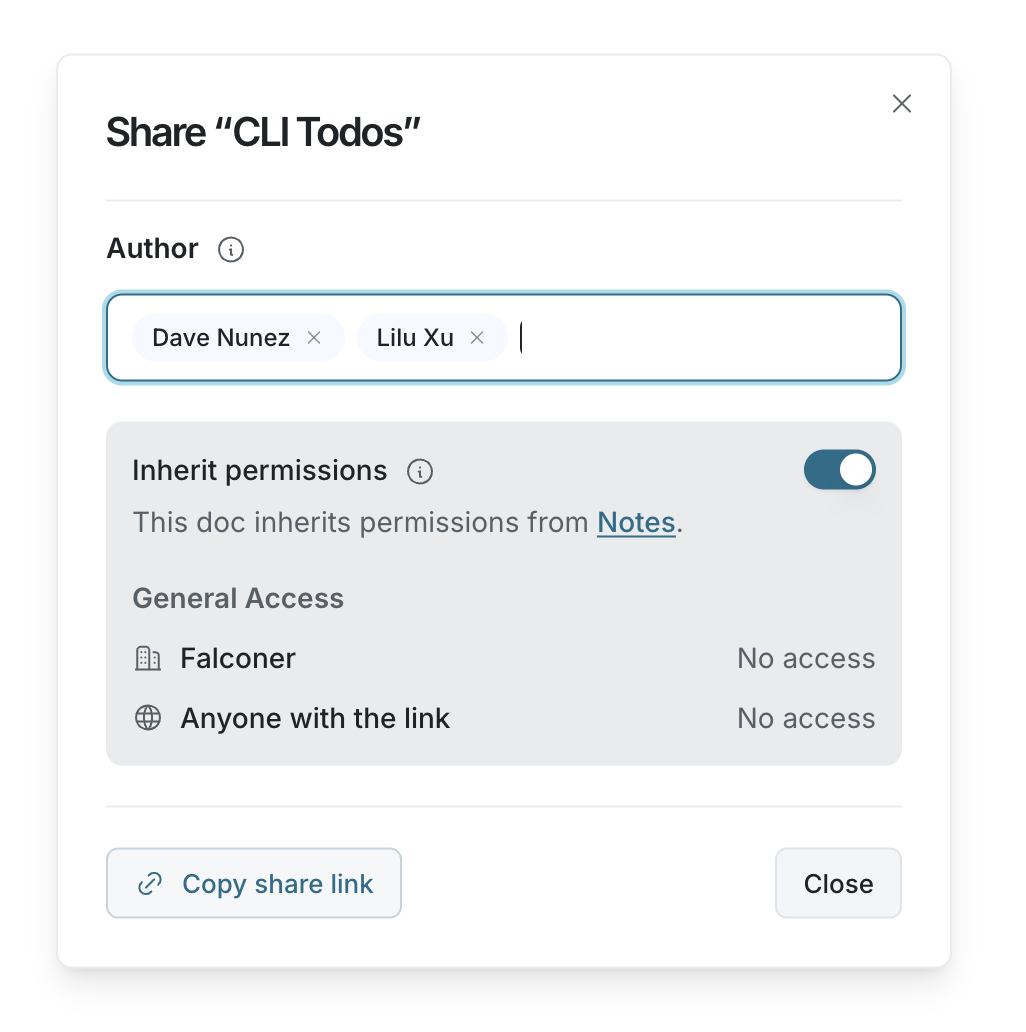
To add an author, search for a teammate in the Author section. To remove an author, click the x next to their name.
Only organization members can be authors.
Copy a share link
Section titled “Copy a share link”Click Copy share link in the share dialog to copy the doc URL.
The link does not grant access by itself unless Anyone with the link allows it. People who do not have access will need permission before they can open the doc.