

Redirects
Keep old links working when pages move, and send visitors from retired addresses to new ones.
Automatic redirects
Section titled “Automatic redirects”When you move or rename a page in the Docs view, its address on the site changes. Falconer remembers the old address and adds a redirect to the new one on the next build. You don’t need to do anything for these.
Add your own
Section titled “Add your own”Open Site configuration and choose Redirects. You need to be an organization owner.
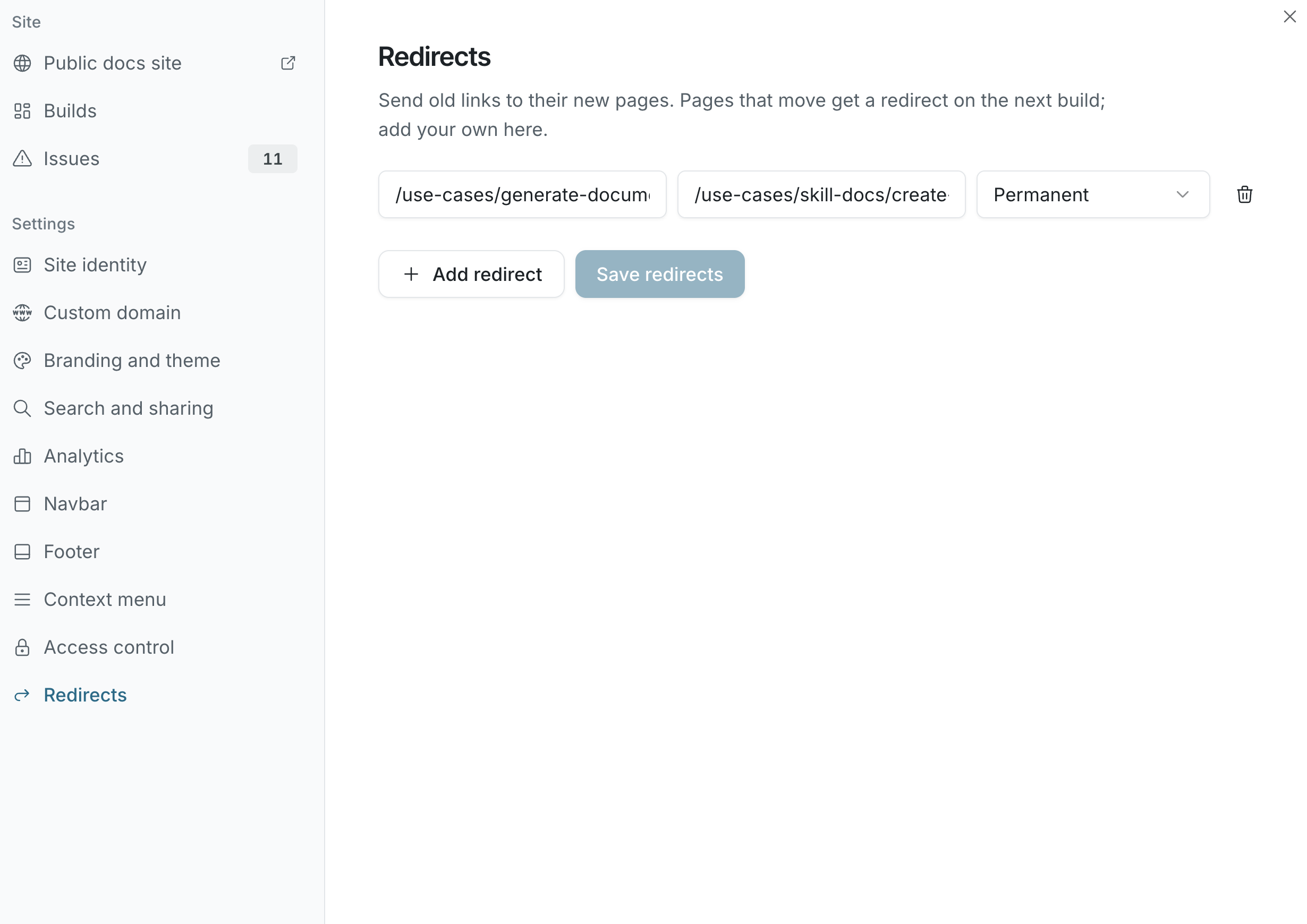
- Click Add redirect.
- Enter the old path, such as
/getting-started, and where it should go, such as/quickstartor an externalhttps://address. - Choose Permanent for a page that moved for good, or Temporary for one that will come back. Permanent redirects tell search engines to update their links.
- Click Save redirects.
Redirects take effect on the next build you publish.
Wildcards
Section titled “Wildcards”End the old path with /* to redirect everything under it.
| From | To | Result |
|---|---|---|
/v1/* | /v2/* | Each page under /v1/ goes to the matching page under /v2/ |
/legacy/* | / | Everything under /legacy/ goes to the home page |
Matching ignores letter case and trailing slashes.
Limits
Section titled “Limits”- Each old path can appear once.
- A site can have up to 1,000 redirects after wildcards are expanded. Your own redirects take priority; automatic ones are dropped first if the limit is reached.