

Password-protect the site
Put the whole site, including search and Ask the docs, behind one shared password.
Password protection is for docs that aren’t ready for the public yet, or that are written for customers and partners rather than everyone. Everyone who reads the site shares the same password.
Open Site configuration and choose Access control. You need to be an organization owner.
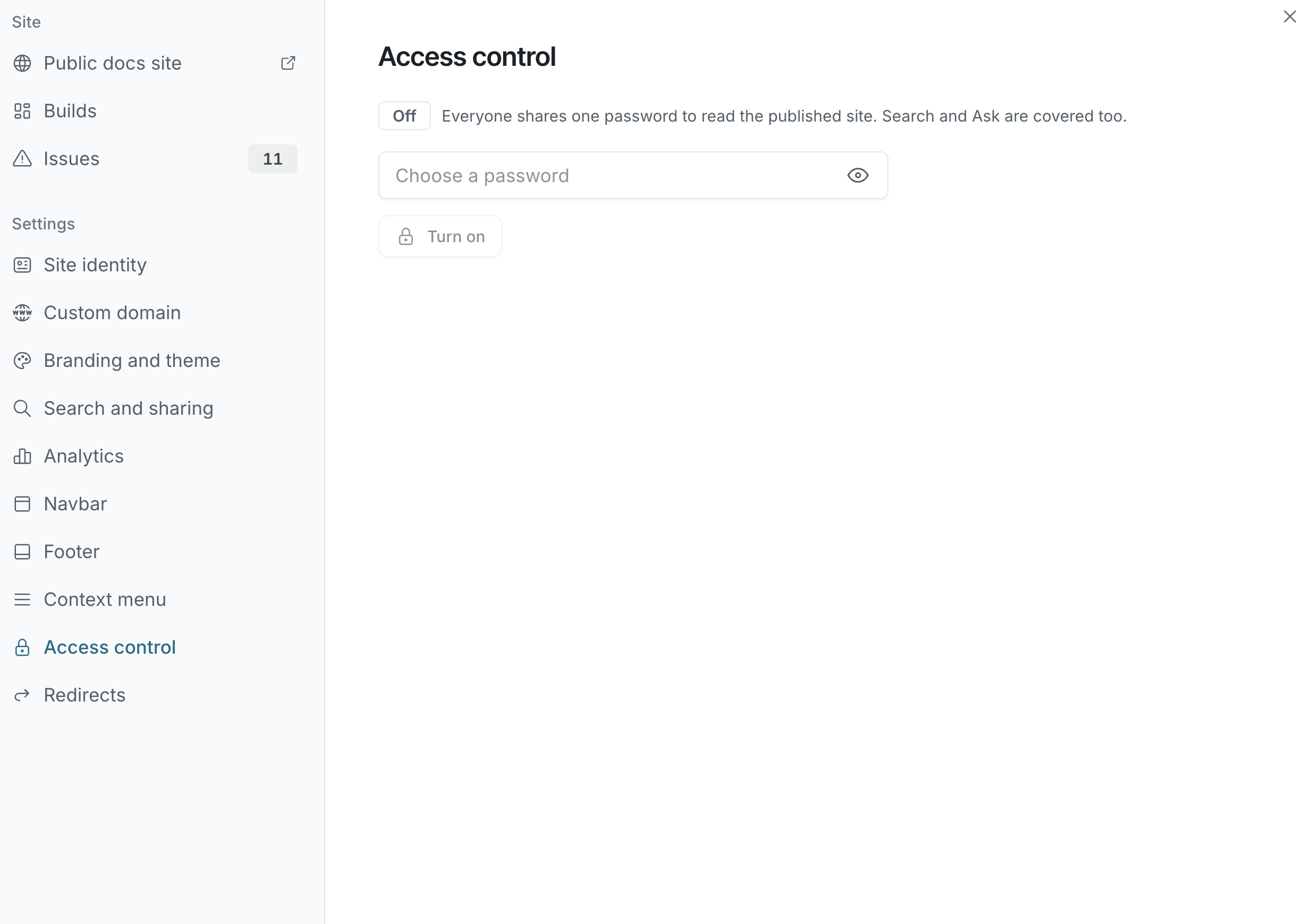
Turn on password protection
Section titled “Turn on password protection”- Enter a password of 12 to 72 characters.
- Click Turn on.
- Use the copy button to copy the password and share it with your readers.
The change applies to the live site right away, without a new build. Visitors see a This site is private page and enter the password to continue. Once they’re in, they stay signed in for 7 days on that browser.
Change the password
Section titled “Change the password”Enter a new password and click Update password. New visitors need the new password. Anyone already signed in stays signed in until their 7 days run out, or until you sign everyone out.
Sign out all visitors
Section titled “Sign out all visitors”Click Sign out all visitors to make everyone enter the password again. The password itself doesn’t change. Use it together with a new password when access needs to be cut off immediately.
Turn off password protection
Section titled “Turn off password protection”Click Turn off and confirm with Make the site public. The site, including search and Ask the docs, becomes readable by anyone with the link. The password is discarded.
What password protection doesn’t do
Section titled “What password protection doesn’t do”- It doesn’t create accounts or let you give different people different access. To keep some pages out of the site entirely, mark them private. See Private and hidden.
- Search engines only ever see the password page. If you don’t want the site listed at all, also turn off Allow search engines in Search and sharing.