

Docs view and Files view
How the site’s navigation and its files relate, and how to link, unlink, move, and delete pages.
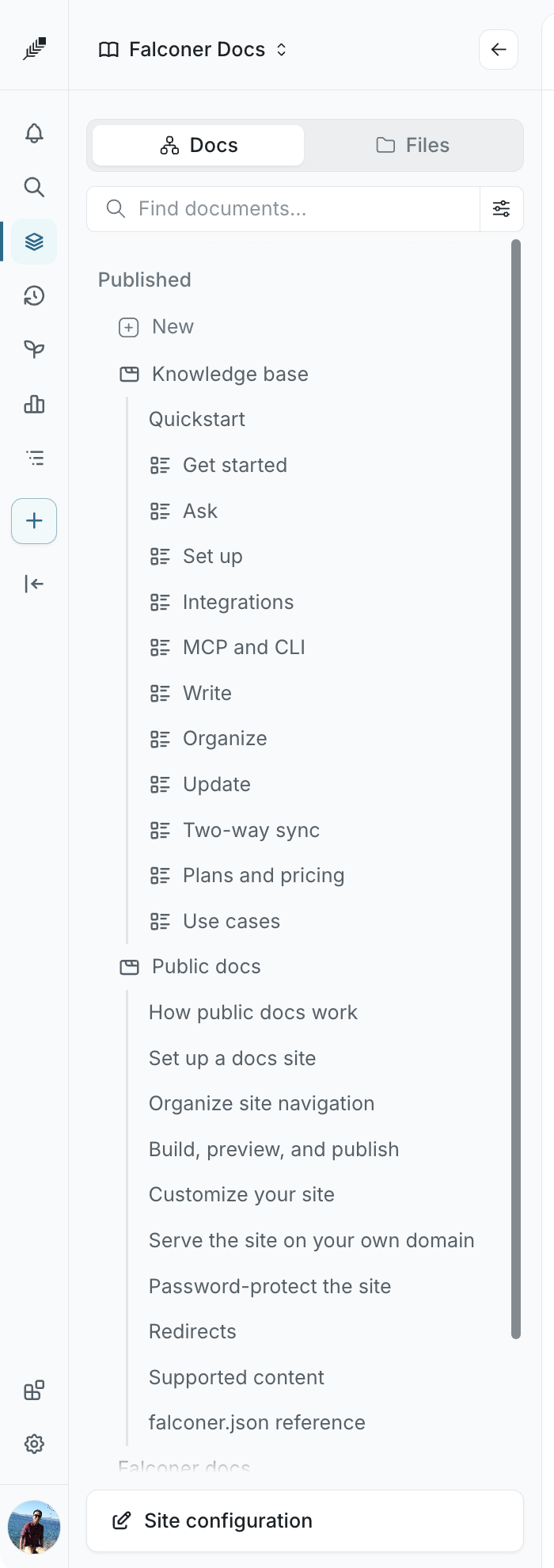
A space with a docs site shows two views in the left nav, switched with the Docs and Files toggle at the top.
| View | What it shows |
|---|---|
| Docs | The site’s navigation: sections and pages in the order visitors see them. The site’s section is titled Published; your drafts sit under Private documents below it. |
| Files | The files behind the site: Markdown pages, images and other assets, and falconer.json. In a GitHub-synced space this is the repository. |
The mental model
Section titled “The mental model”A page is two things at once: one file in Files, and a placement in Docs.
- The file holds the content and decides the page’s address on the site.
guides/install.mdxis published at/guides/install, wherever it lives in Docs. - The placement decides where the page appears in the navigation, and under which section.
- A file can have no placement. It stays in Files and isn’t published until you link it into Docs.
- A file can have more than one placement, in different sections, and the site shows it in each. It can’t appear twice under the same parent.
So Docs is for arranging what visitors see, and Files is for naming and organizing what’s on disk. What you do in one view affects the other in specific ways:
| You do this | In Files | In Docs |
|---|---|---|
| Create a page in Docs (Add document or New) | A .mdx file named from the title is created at the root of Files | The page is placed where you created it |
| Create a Markdown file in Files (New Markdown file) | The file is created where you chose | Nothing, until you link it |
| Move a page in Docs | Nothing. The file and the address stay the same. | The page moves to the new section |
| Move or rename a file in Files | The file moves, and the page’s address changes. A redirect from the old address is added on the next published build | The placement stays where it was |
| Rename a page’s title in the editor | Nothing. The file keeps its name. | The label updates |
| Remove from Docs | Nothing. The file stays. | The placement is removed, with everything under it |
| Delete a file in Files | The file and its document are deleted | Every placement of it is removed |
Note: In a space that is synced with GitHub but has no docs site, Docs mirrors the repository directly: moving a page there moves its file. The table above describes a space with a docs site.
Link a file into Docs
Section titled “Link a file into Docs”A Markdown file that isn’t in the navigation shows a link-off icon in Files with the tooltip Not linked into Docs. There are three ways to link it:
- From Files: hover the file and click Link into Docs. The page is placed at the site root and the nav switches to Docs.
- From the editor: an unlinked page shows a banner, “This file is not linked into Docs, so it will not appear in the navigation”, with a Link into Docs button.
- From Docs: right-click a section and choose Add existing. A picker lists the site’s Markdown files, unlinked ones first, with a Find files search. Pick one to place it under that section.
Add existing is also how you place a page in a second section. Files already under the section you clicked aren’t offered.
Unlink a page
Section titled “Unlink a page”Right-click a page or section in Docs and choose Remove from Docs. The placement goes away and the file stays in Files, so you can link it again later. Removing a section removes everything under it and asks you to confirm first. Only organization owners see Remove from Docs on site items.
To delete the content as well, delete the file in Files.
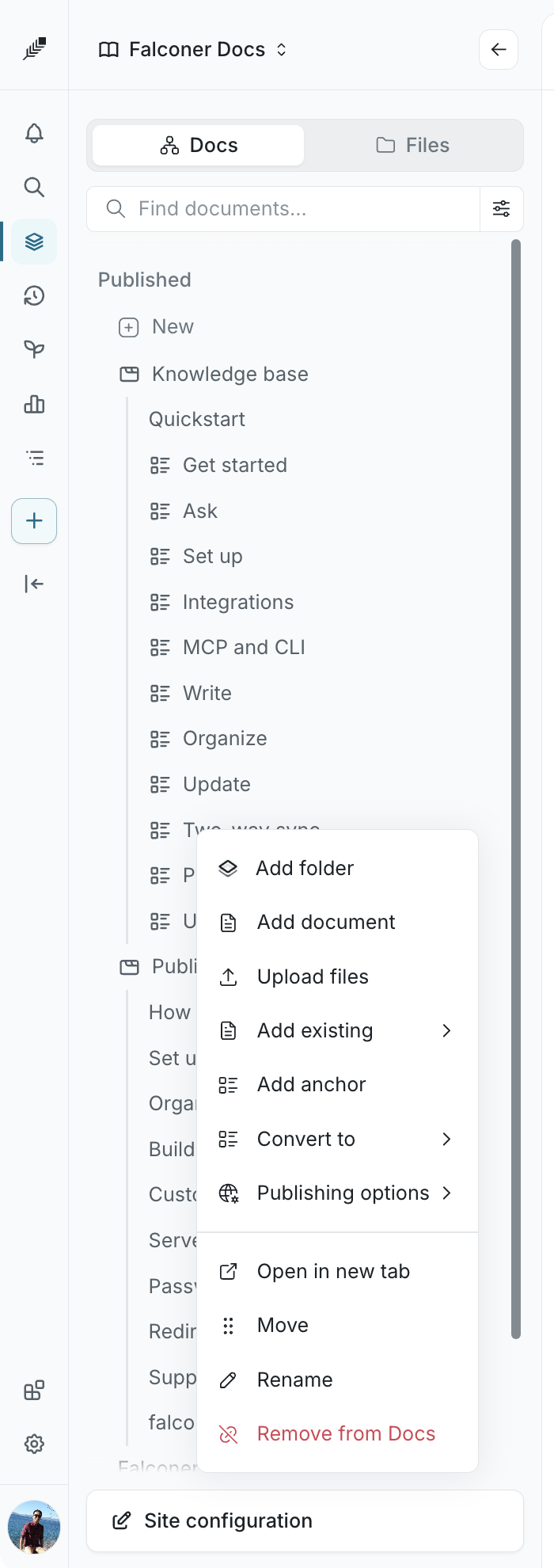
Context menu in Docs
Section titled “Context menu in Docs”Right-click an item, or click its … button. What you see depends on the item.
| Item | Options |
|---|---|
| The Published header | Add folder, Add existing, Add document, Upload files, Add tab, Add anchor, Other > Add external link tab |
| A section | Add folder, Add existing, Add document, Upload files, Add anchor, Convert to, Publishing options, Move, Rename, Remove from Docs |
| A page | Add folder, Add existing, Add document, Upload files, Open in new tab, Move, Rename, Remove from Docs |
| A section with a destination URL | Open in new tab, Move, Rename, Remove from Docs. Clicking the row opens its link dialog instead. |
A few details:
- Add folder creates a group. Add tab and Add anchor create the other section kinds. See Navigation sections.
- Upload files from the Published header or a section imports Markdown files as pages and keeps PDFs, Office files, images, and videos as files.
- Adding items under a page nests them: the page becomes the label of a group on the site.
- Rename on a page points you to the editor; change the title there. Sections rename inline.
- Convert to, Publishing options, Add tab, Add anchor, and Remove from Docs need an organization owner.
Context menu in Files
Section titled “Context menu in Files”| Item | Options |
|---|---|
| The site header | New Markdown file, New folder, Upload file |
| A folder | New Markdown file, New folder, Upload file, Rename, Delete |
| A Markdown page | Rename, Delete |
| Any other file | Replace file, Download, Rename, Delete |
falconer.json | No menu. It’s generated from your site settings; opening it takes you to Site configuration. |
Deleting asks you to confirm. In a GitHub-synced space the file is removed from the repository on the next push and shows Pending delete until then.
Working in Files
Section titled “Working in Files”- Filters: the chips at the top switch between All files, Docs and assets, and Docs only.
- Names: a name typed with spaces becomes kebab-case, and
.mdxis added unless you typed.mdor.mdx. A page file has to keep a Markdown extension. - Drag and drop: drag a file into a folder, or onto the site header to move it to the root. Files are listed in path order, so there’s no manual reordering here; order pages in Docs. Files dropped from your computer are uploaded.
- Editing: Markdown opens in the editor. Code, CSS, JSON, YAML, and other text files up to 5 MB are edited in-app. Everything else is stored as is, with images shown as pictures.
- Uploads are limited to 100 MB per file. Uploading a name that already exists adds a suffix.
- Images referenced from pages keep working when you move them; Falconer rewrites the references.
- An imported
docs.jsonormint.jsonis read-only: it seeds the site once and is never written back.