

Build, preview, and publish
Generate a build, preview it privately, make it live, and roll back when you need to.
Builds
Section titled “Builds”A build is a snapshot of the space rendered as a website. Builds are numbered, kept with the name of whoever started them, and never change once finished. Publishing points the live site at one build, so editing pages never changes what visitors see until you publish again.
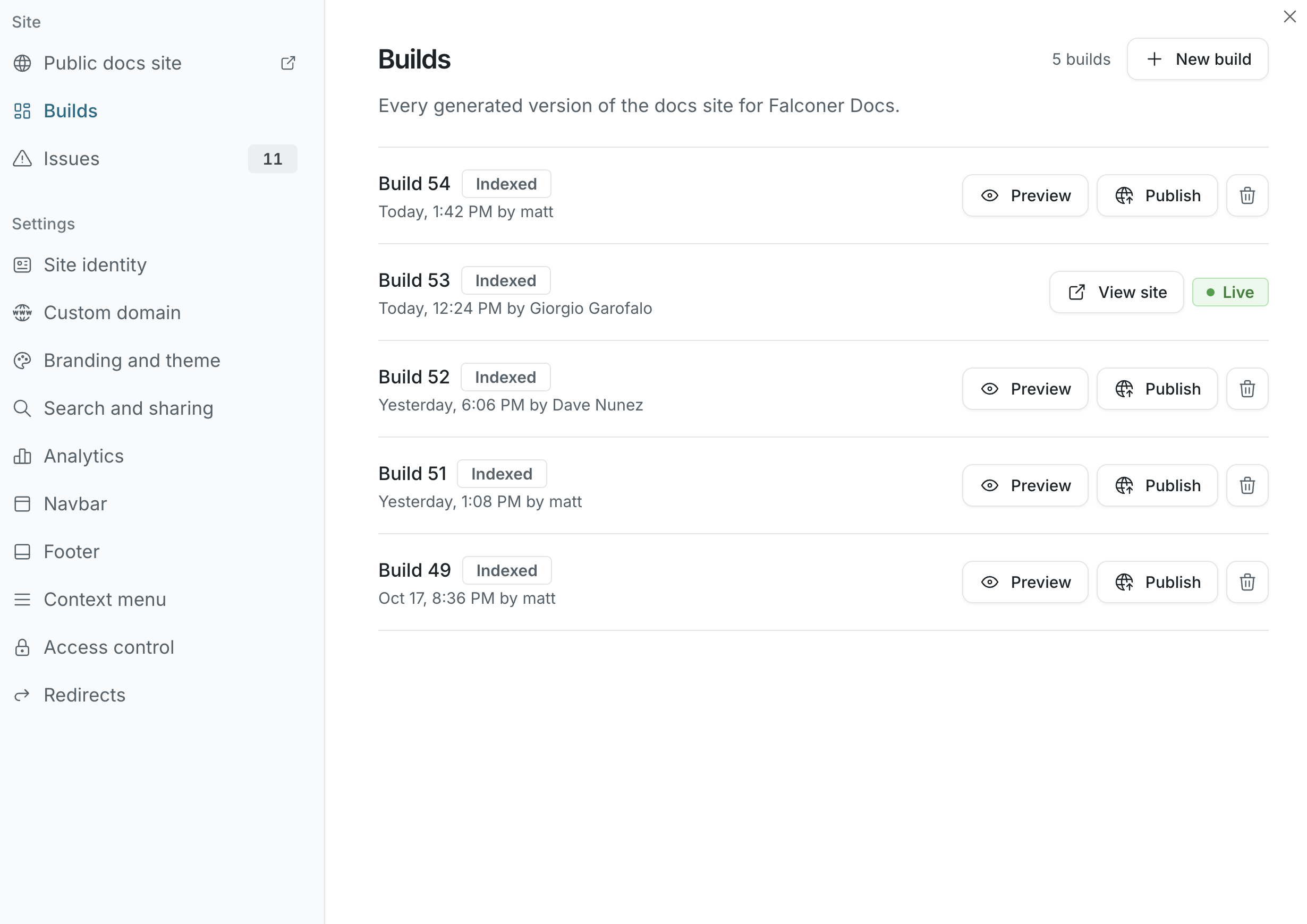
Open Site configuration from the space and choose Builds to see every build of the site.
Publish in one step
Section titled “Publish in one step”If you’re an owner, the space header has a Publish site button. It builds the space and publishes the result as soon as the build succeeds.
Its menu also has Preview in a new tab, which builds a private preview and opens it when it’s ready.
Build and publish separately
Section titled “Build and publish separately”- In Builds, click New build. The build runs in the background. One build runs at a time per site, so a second request joins the one already queued.
- When it finishes, click Preview to open the build privately in a new tab. Previews are only visible to signed-in organization owners.
- Click Publish to make the build your live site.
Publishing reaches every edge location within about a minute. Until then the site may briefly show the previous build.
Build status
Section titled “Build status”| Status | What it means |
|---|---|
| Queued | Waiting for a free builder |
| Building | Rendering the pages |
| Indexing | Pages are built and are being added to the search index |
| Indexed | Search and Ask the docs can answer from this build |
| Failed | The build didn’t finish. Start a new one to retry. |
Search indexing runs after the build itself. If you publish before indexing finishes, Falconer asks you to confirm with Publish anyway. Site search and Ask the docs then answer from the previously indexed build until indexing completes. If indexing fails or stalls, click Index docsite on the build to run it again.
Roll back
Section titled “Roll back”To go back to an earlier version of the site, click Publish on an older build. Nothing is rebuilt, so the switch is immediate.
Unpublish
Section titled “Unpublish”To take the site offline, click Unpublish on the site card. Visitors get a not-found page. Builds are kept, so you can publish any of them again later.
Cancel and delete builds
Section titled “Cancel and delete builds”- Cancel a build while it’s still queued.
- Delete a finished build you no longer need. The live build can’t be deleted; publish another build or unpublish first.
Falconer keeps the five most recent builds plus the live one, and removes older builds automatically.
Issues
Section titled “Issues”Every build checks the links between your pages. Open Site configuration and choose Issues to see broken links grouped by page, with the reason: the page or heading wasn’t found, or the linked document isn’t published to this site.
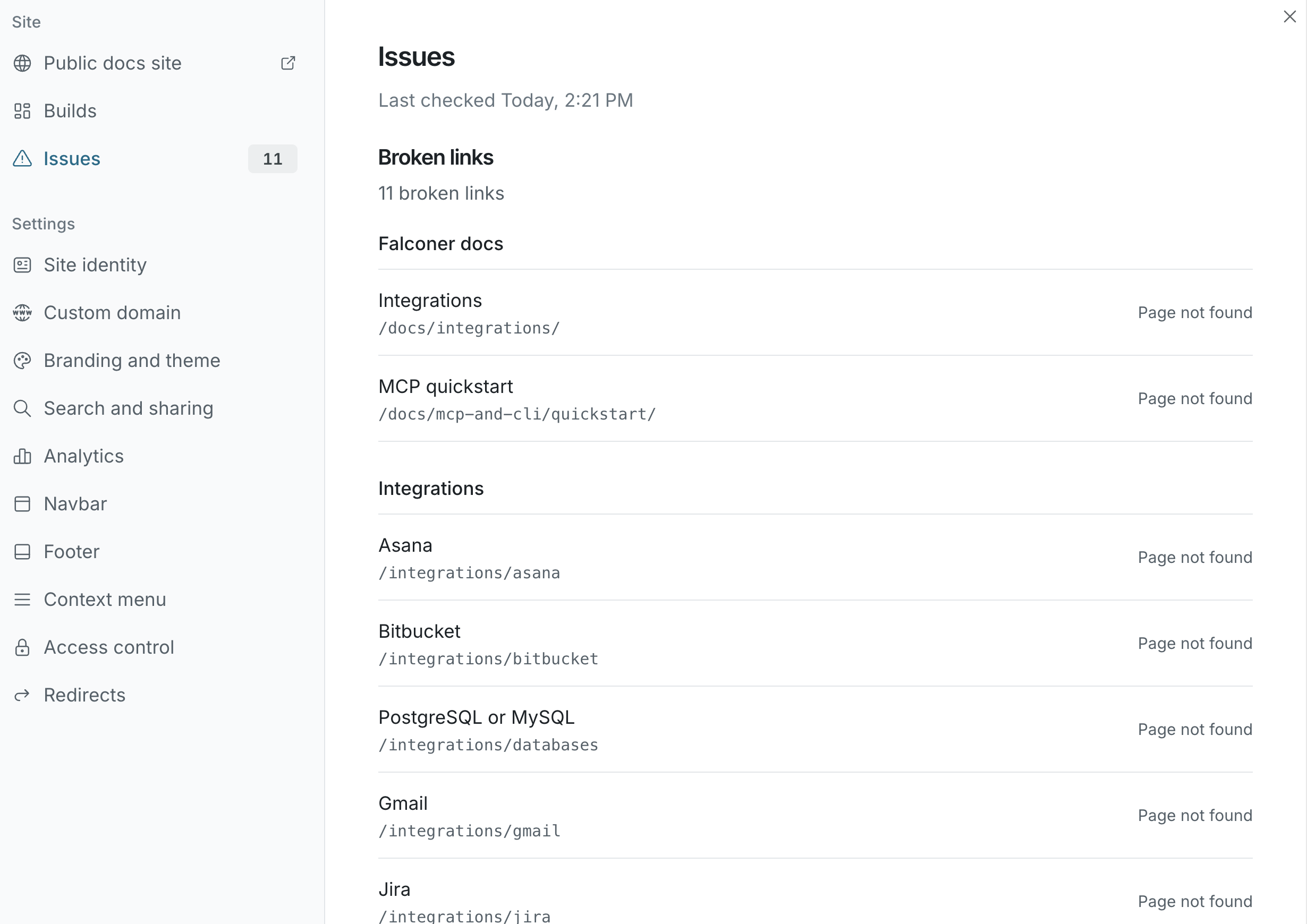
Fix the links and build again to clear them.