

Serve the site on your own domain
Point a subdomain at Falconer, or serve the docs under a path on your main site.
Open Site configuration and choose Custom domain. You need to be an organization owner who can manage billing.
A custom domain is a paid add-on, 15,000 credits per month per site. See Plans and limits. Setting up and verifying the domain is free; billing starts when you enable it.
Choose how to serve the site
Section titled “Choose how to serve the site”| Option | Example | How traffic reaches Falconer |
|---|---|---|
| Subdomain | docs.example.com | A CNAME record in your DNS. |
| Path on your domain | example.com/docs | A rule in your own web server or hosting that forwards the path to Falconer. |
An apex domain such as example.com isn’t supported on its own. Use a subdomain, or serve the docs under a path.
Subdomain
Section titled “Subdomain”- In your DNS provider, create a CNAME record from your subdomain to
cname.falconer.com. The CNAME both routes traffic and proves you control the domain, so no separate verification record is needed. - In Custom domain, choose Subdomain, enter the domain, and click Check and confirm. If the record hasn’t propagated yet, Falconer tells you to add it first. New DNS records can take a few minutes to resolve.
- Wait for the status to change from Verifying to Ready to enable. Falconer issues a certificate automatically and keeps checking; click Check now to check immediately.
- Click Continue to enable the domain. The status moves through Going live to Active.
HTTPS is handled for you. The certificate is issued and renewed automatically.
Path on your domain
Section titled “Path on your domain”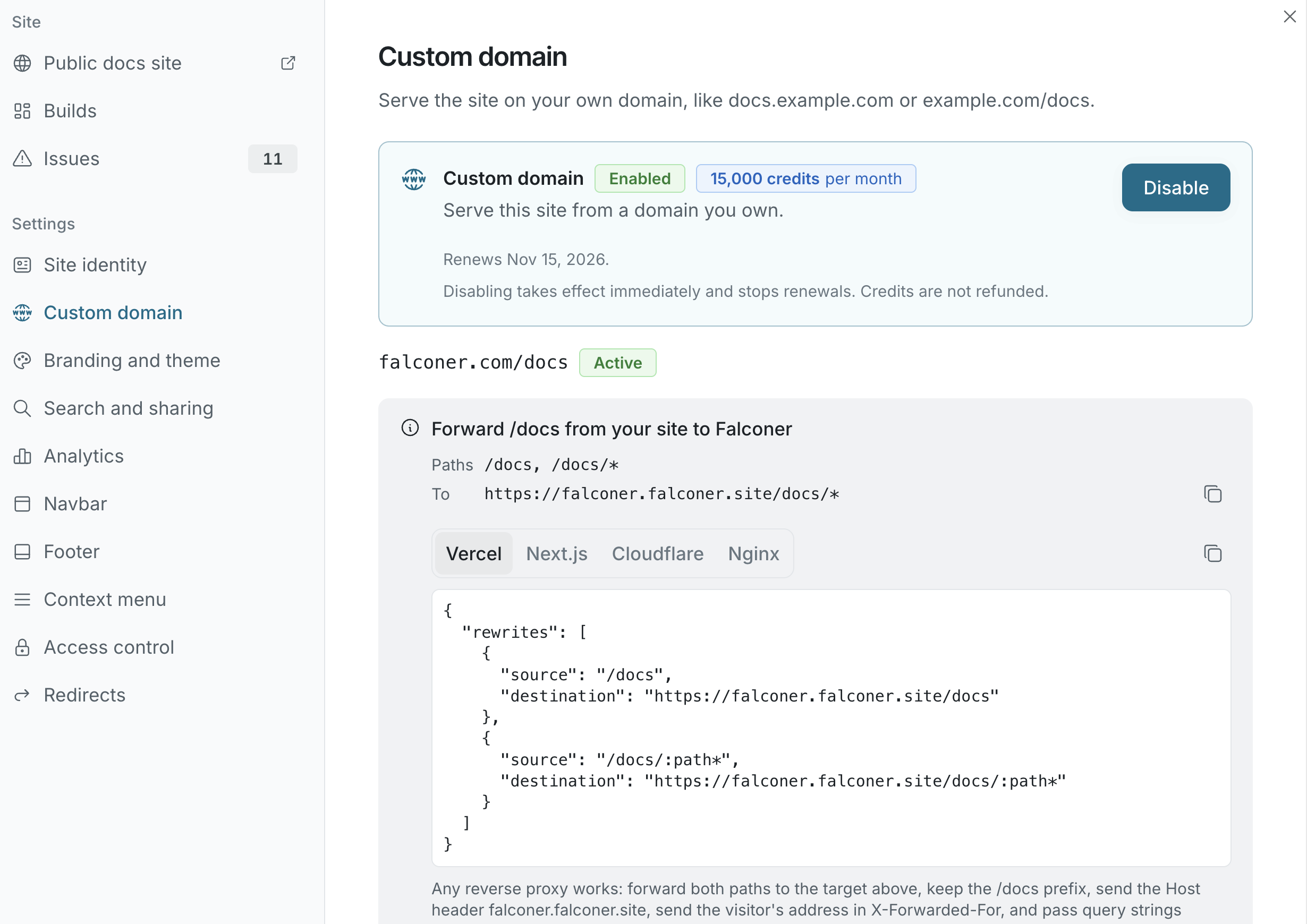
- In Custom domain, choose Path on your domain, enter the address such as
example.com/docs, and click Continue. - Add a forwarding rule to the site that serves
example.com. Falconer shows the exact rule, with ready-made snippets for Vercel, Next.js, Cloudflare, and Nginx. The rule forwards/docsand/docs/*to your site’s Falconer address, keeps the path, and sends the Falconer host name, the visitor’s IP address inX-Forwarded-For, query strings, and cookies if the site has a password. Don’t cache the docs path on your side. - Publish the site, then click Check now. Falconer requests a marker page through your domain and confirms it reaches the live build. The status changes from Waiting for proxy to Address verified.
- Click Continue to enable the domain.
If the check fails, the message says what went wrong: a redirect, a 404, a wrong host header, your own page being served instead of the docs, or an HTTPS problem.
Domain status
Section titled “Domain status”| Status | What it means |
|---|---|
| Verifying or Waiting for proxy | Falconer is waiting for DNS or your forwarding rule. |
| Ready to enable | Verified. Enable it to start serving and billing. |
| Going live | Rolling out to every edge location. |
| Active | Serving the site. |
| Disabled | Turned off. The setup is kept and can be restored. |
| Failed | Something went wrong. Check the message and try again. |
Disable or remove
Section titled “Disable or remove”- Disable stops serving the site on the domain and stops billing. Everything stays configured, and Restore brings it back without a new charge if the paid period hasn’t ended.
- Remove deletes the domain setup. Disable an active domain first. To switch to a different domain, remove the current one and start again.