

Customize your site
Set the site’s name, logo, colors, header, footer, page actions, SEO, and analytics.
Open Site configuration from the space, or click the settings icon on the site card. Settings save as you type and take effect on the next build you publish. Only organization owners can change them.
If the space is synced with GitHub, the same settings are written to falconer.json in the repository. See the falconer.json reference.
Site identity
Section titled “Site identity”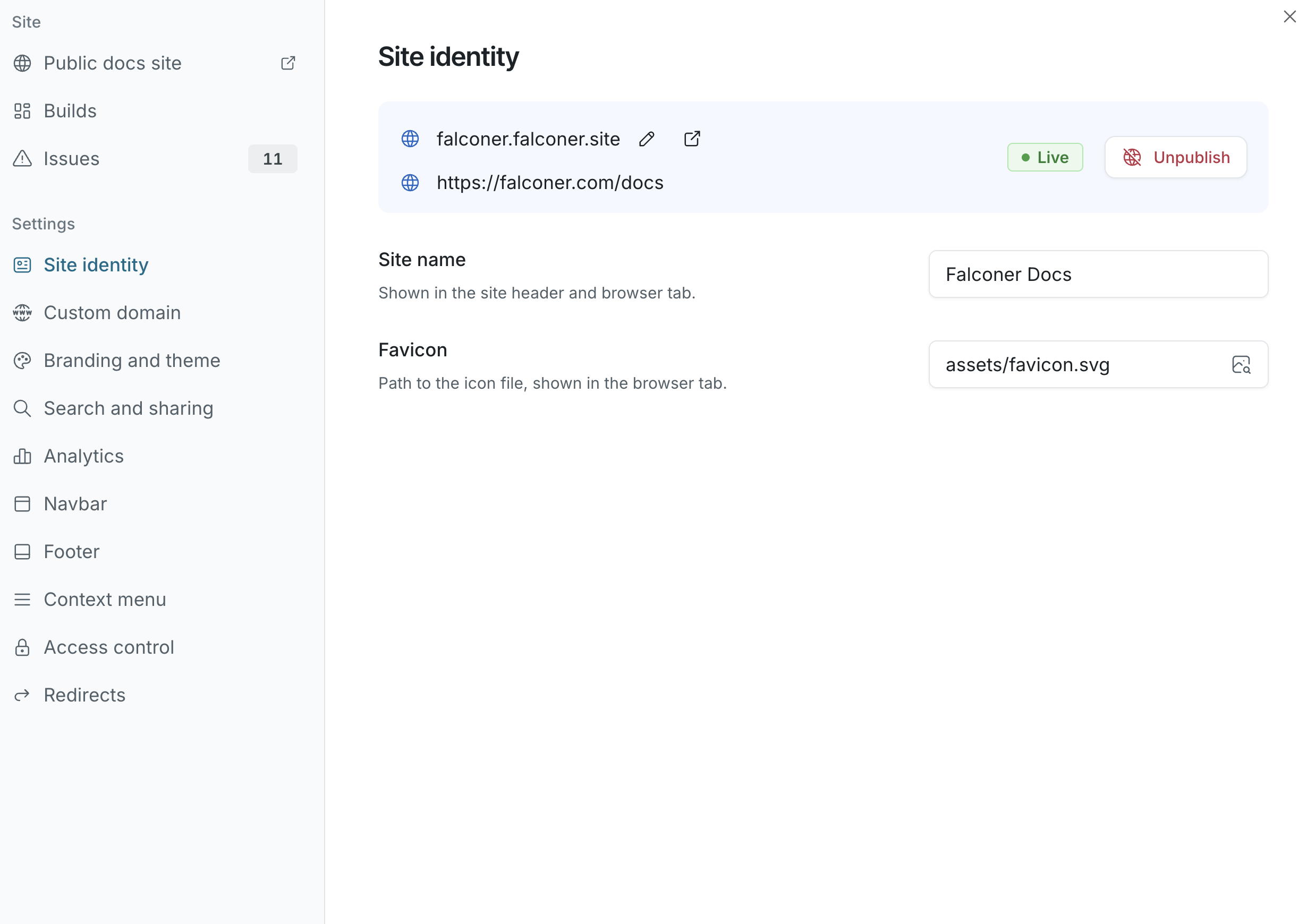
| Setting | What it does |
|---|---|
| Site name | Shown in the site header and the browser tab |
| Favicon | Path to the icon file in the Files tab, such as assets/favicon.svg |
Branding and theme
Section titled “Branding and theme”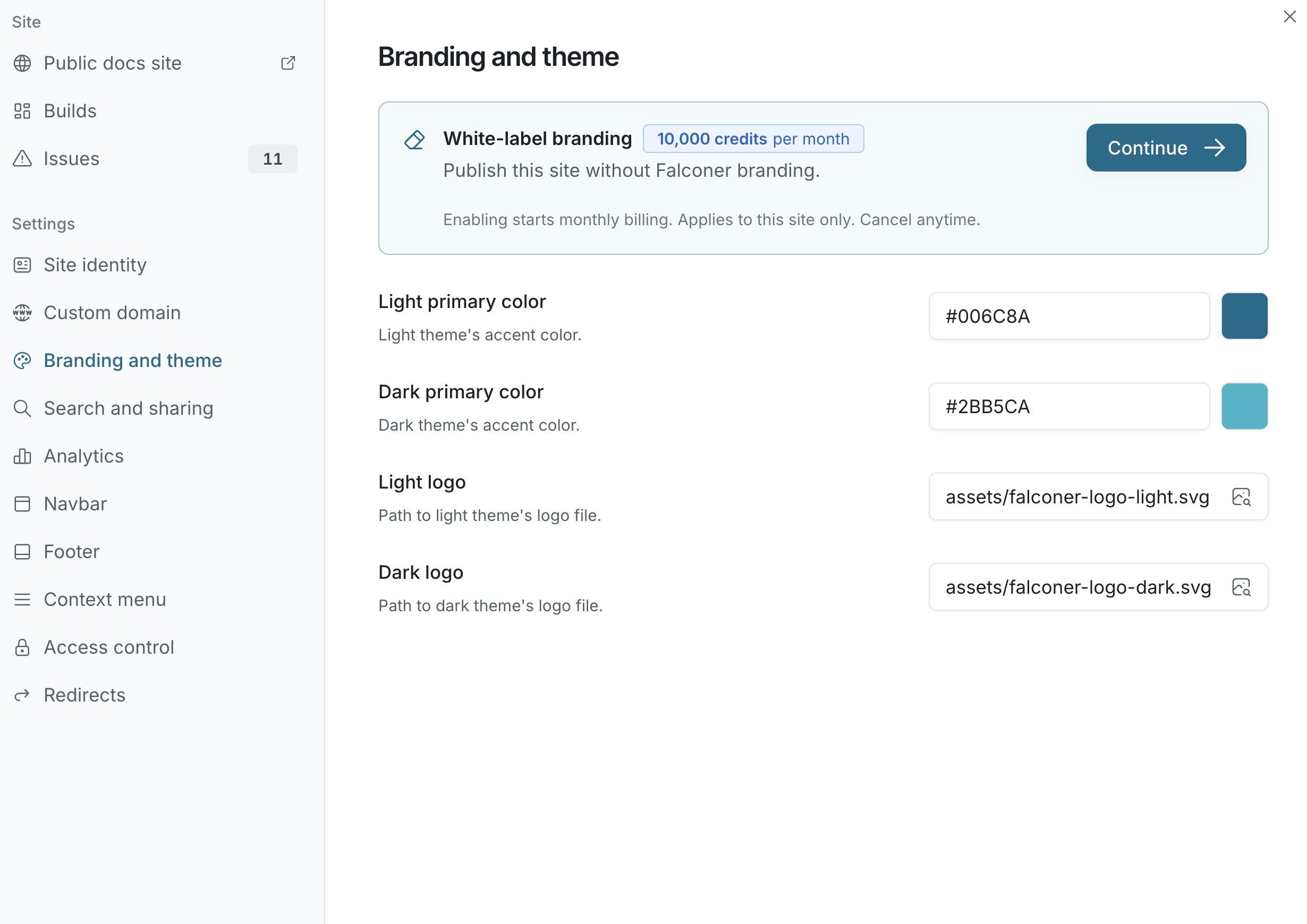
| Setting | What it does |
|---|---|
| Light primary color | The accent color in the light theme, as a hex value |
| Dark primary color | The accent color in the dark theme |
| Light logo and Dark logo | Paths to the logo files in the Files tab, one for each theme |
Logos and favicons are limited to 5 MB each. SVG files are sanitized when the site is built.
White-label branding
Section titled “White-label branding”Published sites show a Made with Falconer badge in the sidebar. White-label branding removes it. It’s a paid add-on, 10,000 credits per month per site. See Plans and limits. Turning it on or off updates the live site without a new build.
Navbar
Section titled “Navbar”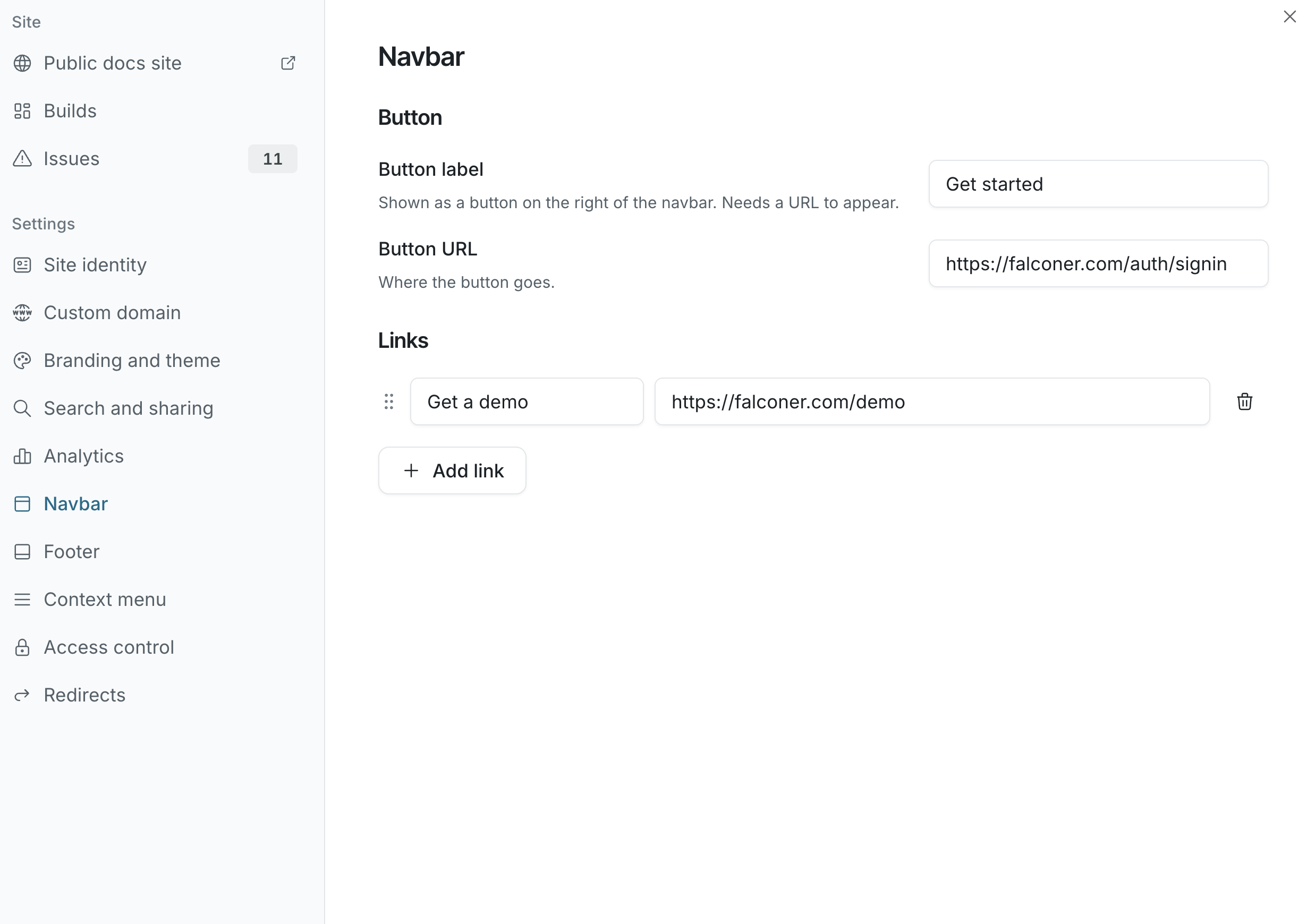
- Button: a call to action on the right of the header, such as Get started. It needs both a label and a URL to appear.
- Links: up to 10 text links shown next to the button.
New sites start with a button that points at Falconer. Change it to your own sign-up or product link.
Footer
Section titled “Footer”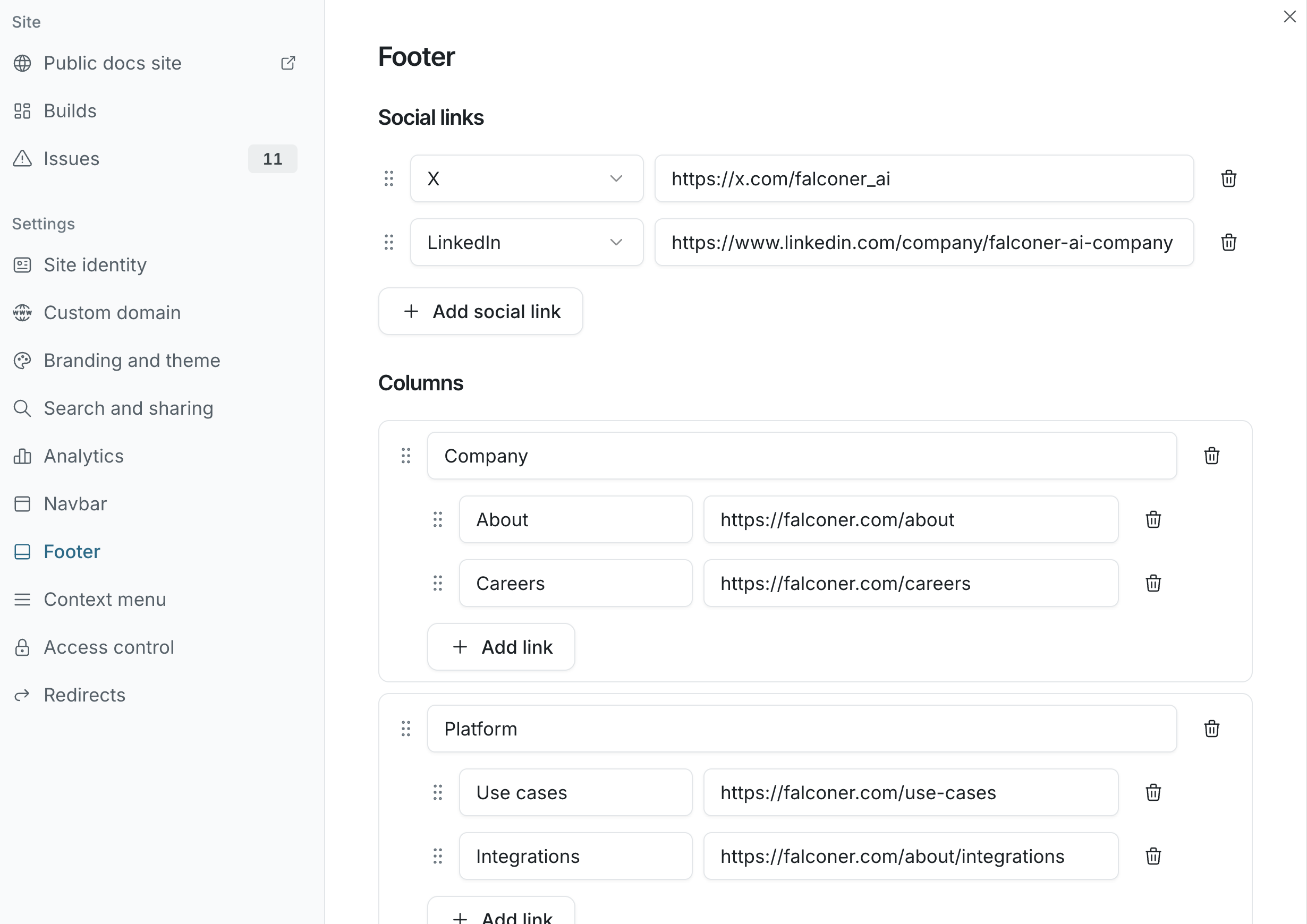
- Social links: icons for X, LinkedIn, GitHub, Discord, Slack, YouTube, and other networks, each with a URL.
- Columns: up to 6 columns of links with a header, such as Company or Resources. Links can be external or a path on the site, such as
/pricing.
New sites start with Falconer’s social links. Replace them with yours.
Context menu
Section titled “Context menu”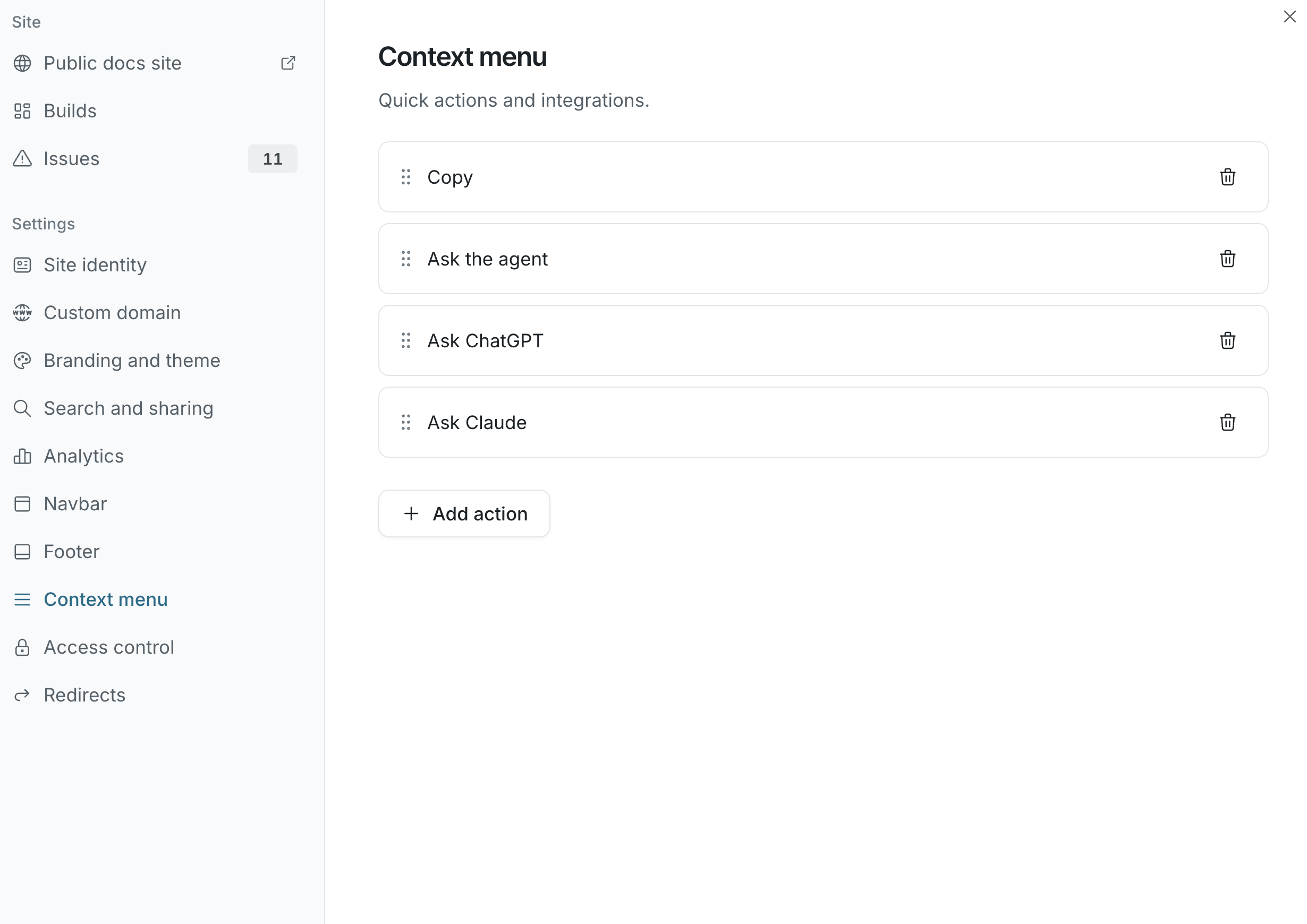
The context menu is the action button at the top of every page. The first action is the button, and the rest open from its menu. Drag to reorder, or remove the ones you don’t want.
| Action | What it does |
|---|---|
| Copy | Copies the page as Markdown |
| View as Markdown | Opens the page’s Markdown twin |
| Ask the agent | Opens Ask the docs with the page in context |
| Ask ChatGPT | Opens ChatGPT with a prompt about the page |
| Ask Claude | Opens Claude with a prompt about the page |
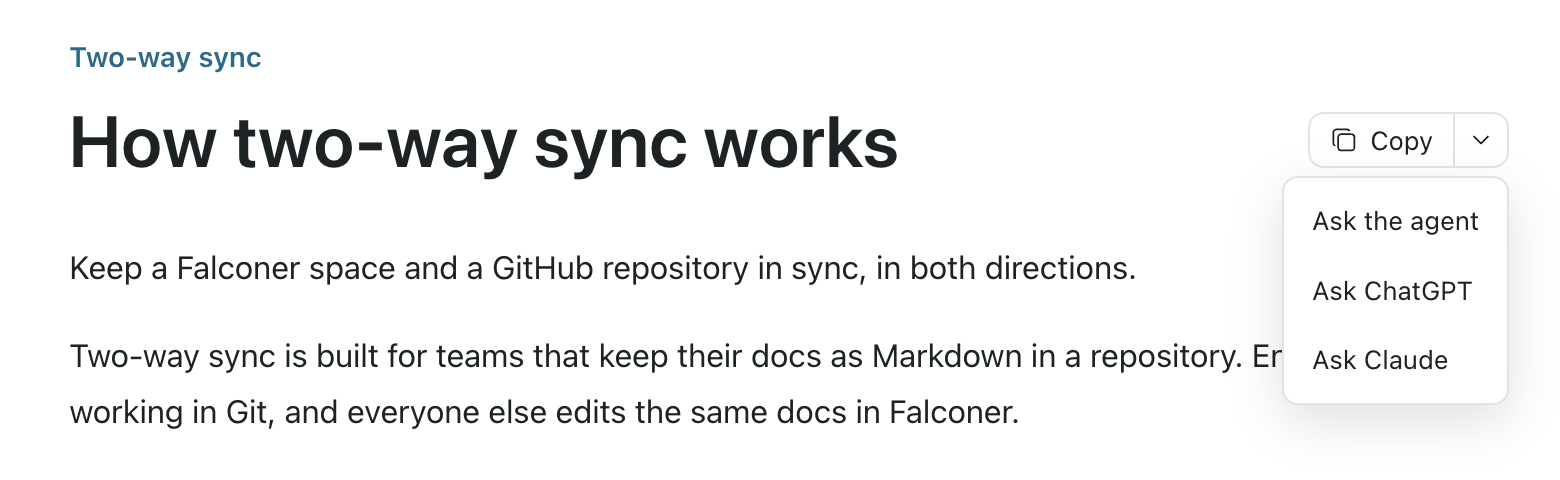
Remove every action to hide the button.
Search and sharing
Section titled “Search and sharing”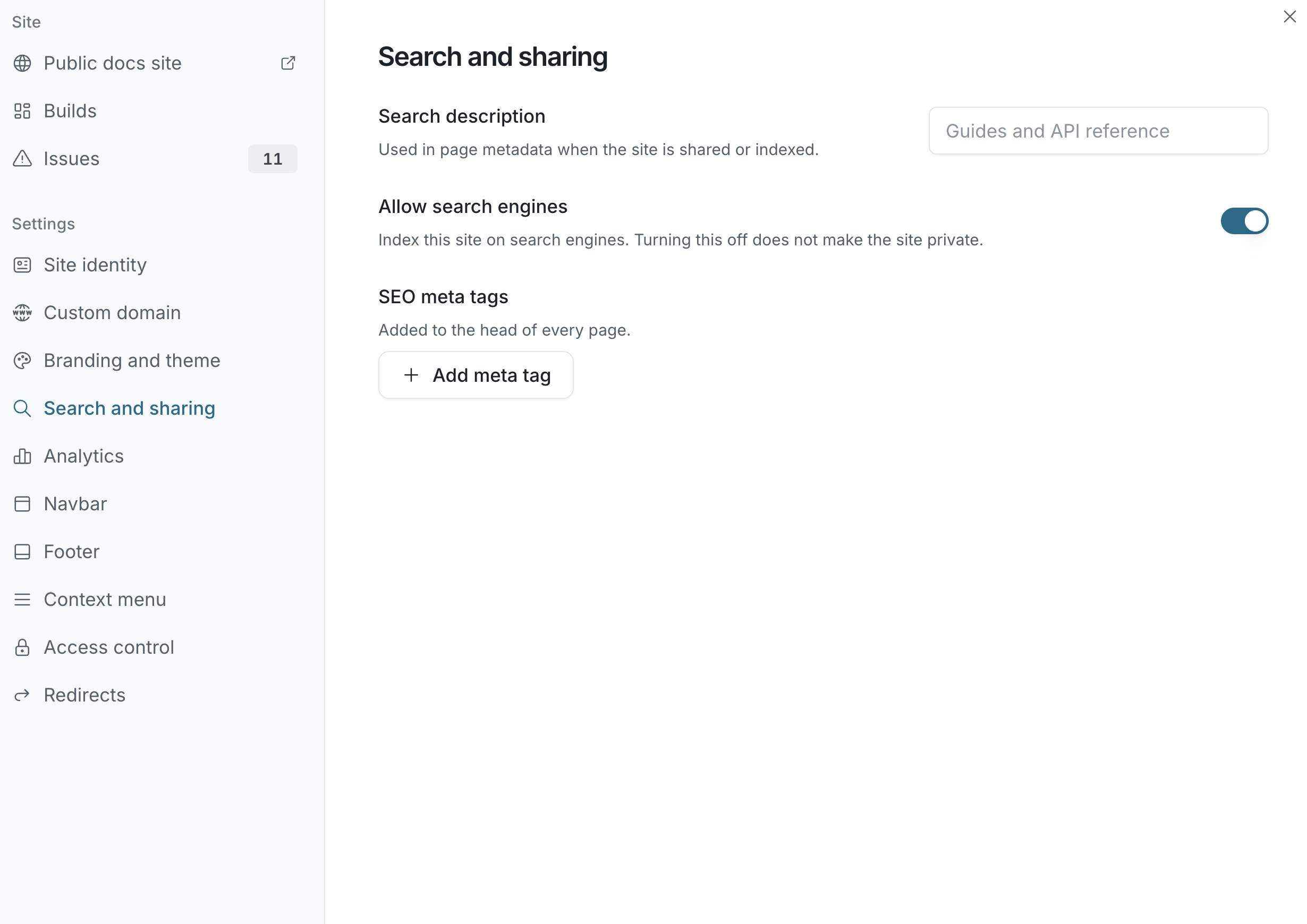
| Setting | What it does |
|---|---|
| Search description | The description in page metadata when a page is shared or indexed. |
| Allow search engines | Lets search engines index the site. Turning it off doesn’t make the site private; use password protection for that. |
| SEO meta tags | Extra meta tags added to the head of every page, such as site verification tags. |
Every build also generates sitemap.xml, robots.txt, Open Graph images, canonical URLs, llms.txt, and llms-full.txt. Pages marked noindex stay out of the sitemap.
Analytics
Section titled “Analytics”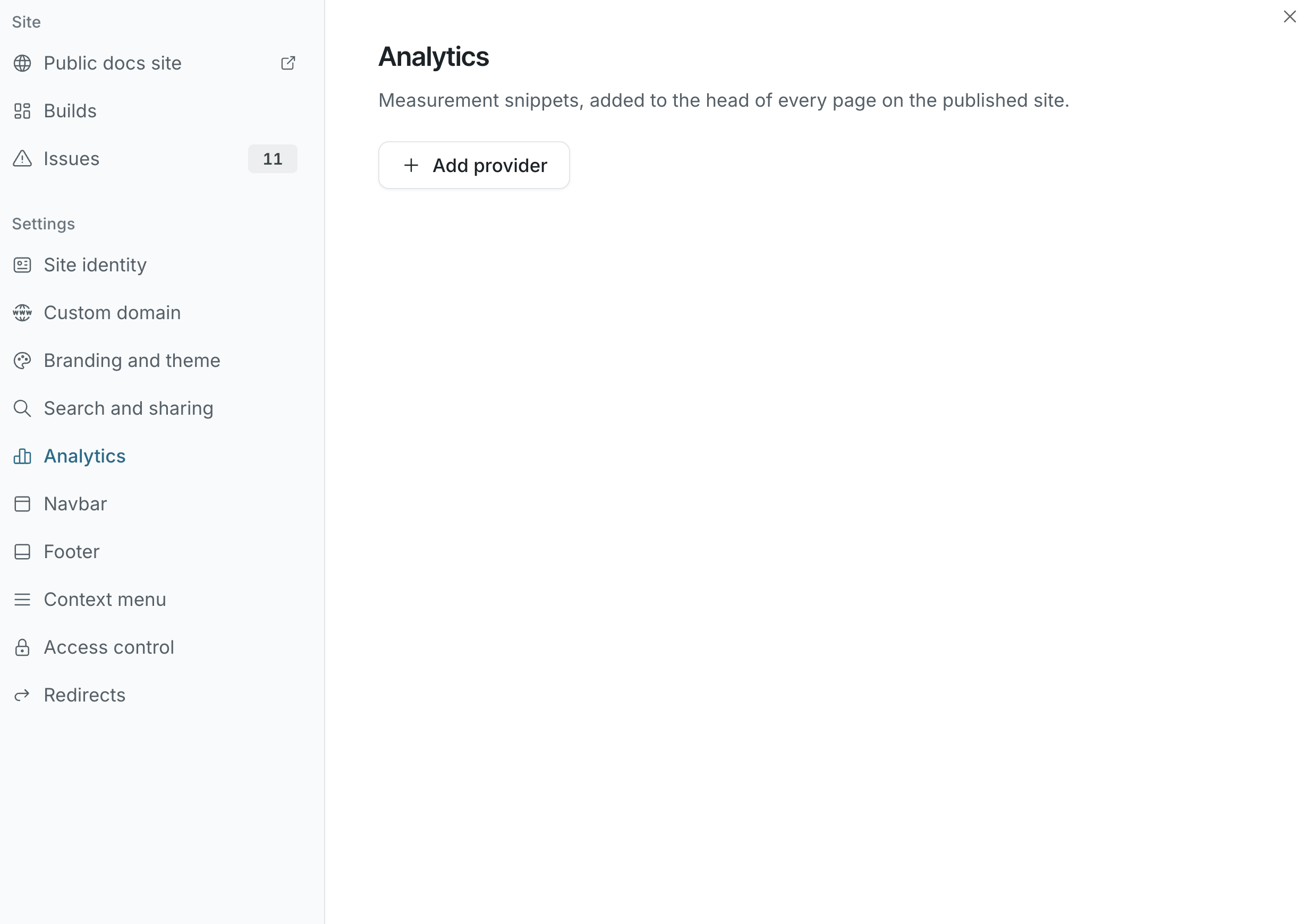
Add a provider with a name, such as Google Analytics, and the HTML snippet it gave you. Any provider that works from a script tag can be added this way: Google Analytics, PostHog, Plausible, Fathom, Segment, and others. The snippet is added to the head of every page on the published site, exactly as written, so it isn’t checked or changed. You can add up to 10 providers.