

Schedule scans
Run Knowledge Health weekly, biweekly, or monthly, on a day you choose.
Your organization’s schedule is off until a member turns it on. Any member can change it.
Set a schedule
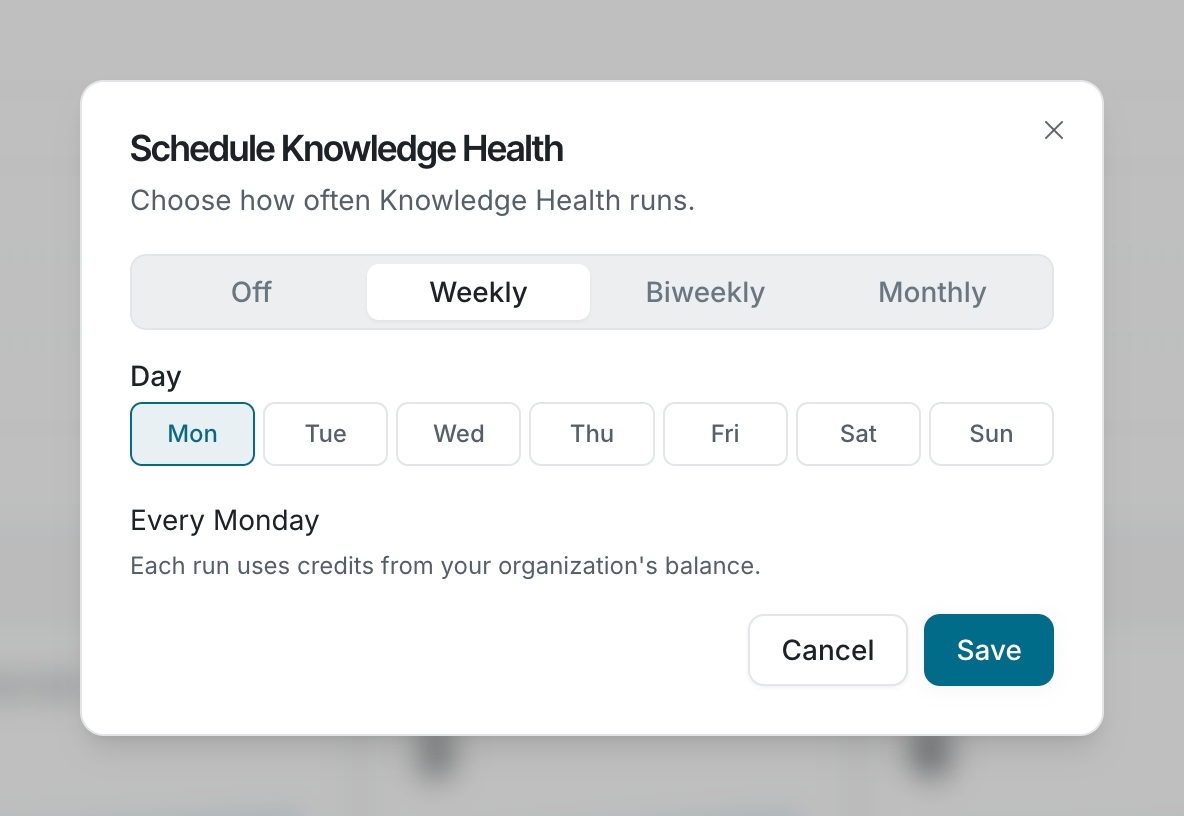
Section titled “Set a schedule”- On the Knowledge Health page, click Schedule. The Schedule Knowledge Health window opens.
- Choose Weekly, Biweekly, or Monthly.
- For a weekly or biweekly schedule, pick a day of the week. For a monthly schedule, pick a day from the 1st to the 28th, or Last day. The window sums up your choice, such as Every Monday.
- Click Save.
When scans start
Section titled “When scans start”Scheduled scans start at 08:30 UTC on the chosen day. When many scans fall on the same day, a start can be delayed by up to 12 hours. You can’t choose the time of day a scan runs.
Change or turn off the schedule
Section titled “Change or turn off the schedule”Click Schedule again and choose a new frequency, or choose Off. With the schedule off, Knowledge Health runs only when someone clicks Run now.
The run banner shows Next run with the date of the next scheduled scan, or No schedule with a Set schedule button.
Do I pay for scheduled scans?