

Fix and triage findings
Assign a finding to Falcon to draft the fix, or triage it yourself.
Fix an issue
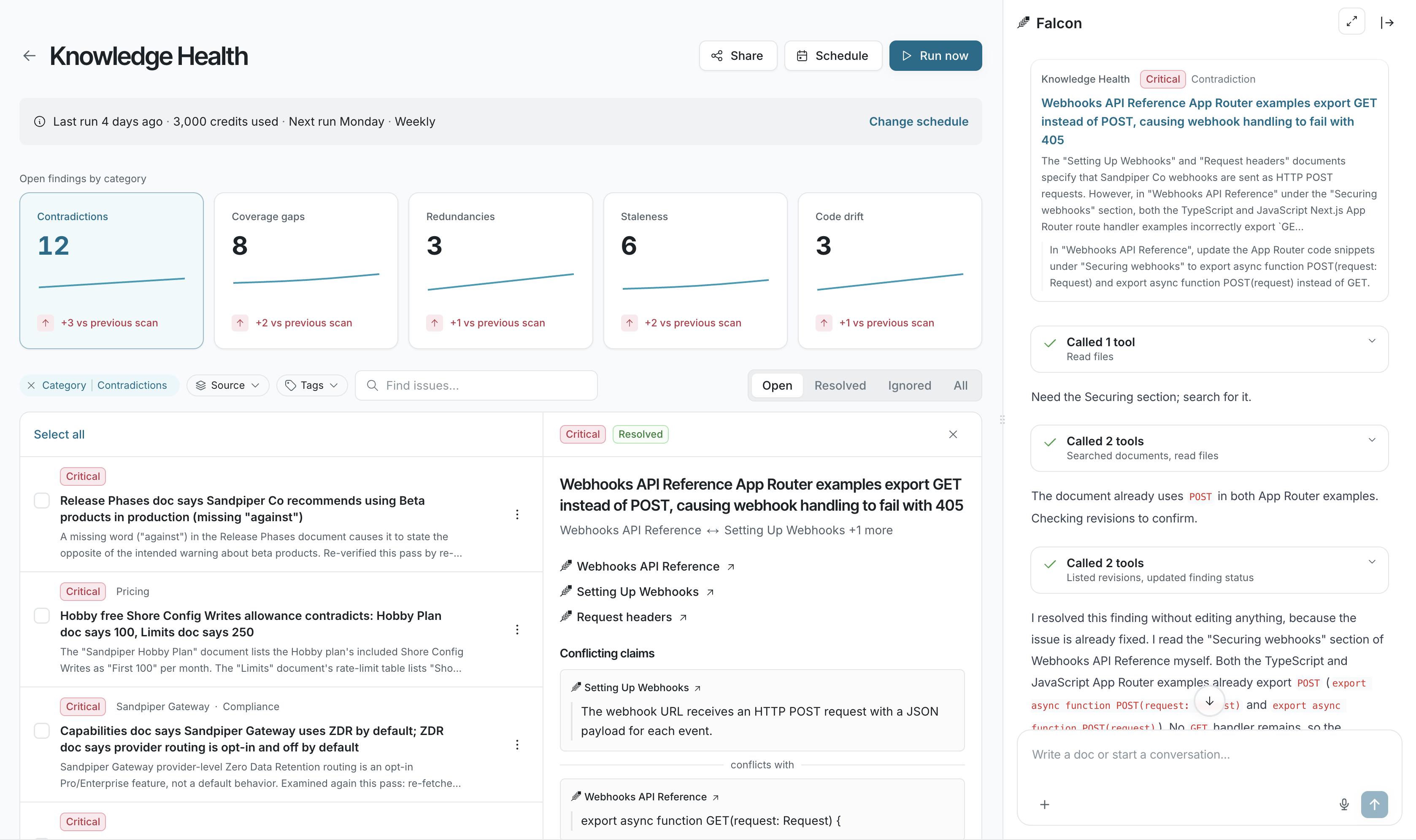
Section titled “Fix an issue”- Open the finding and click Assign to Falcon. The Falcon sidebar opens, and the button changes to Falcon is working.
- If Falcon needs more information, such as which of two conflicting values is correct, it asks in the sidebar. Reply there.
- Falcon shows its edit in the sidebar as a change to the doc, with Accept and Reject. When Falcon drafts a fix without help, the finding shows Review proposed fix instead, or Review proposed document for a coverage gap, and the doc opens with the change.
- Click Accept. Until a draft is accepted, the finding shows Fix under review. If the finding is still open after you accept, click Resolve.
If Assign to Falcon is unavailable, hover over the button to see why. Usually the fix belongs in a tool Falcon doesn’t edit, such as a Notion or Confluence page. Make the change there, then click Resolve.
Triage findings
Section titled “Triage findings”| Action | When to use it |
|---|---|
| Change Owner | Assign the finding to the person who should fix it. |
| Resolve | You fixed the problem yourself. |
| Ignore | The finding isn’t a real problem, or doesn’t matter to your team. |
| Reopen finding | A resolved finding needs more work. |
| Stop ignoring | You ignored a finding by mistake. |
Each scan checks existing findings before it files new ones, so an ignored finding isn’t filed again.
What should I do when a finding is wrong?
Can Falcon fix several findings at once?