

Read the Knowledge Health dashboard
See what the Knowledge Health page shows, and what each run status means.
Select Knowledge Health in the sidebar.
What the page shows
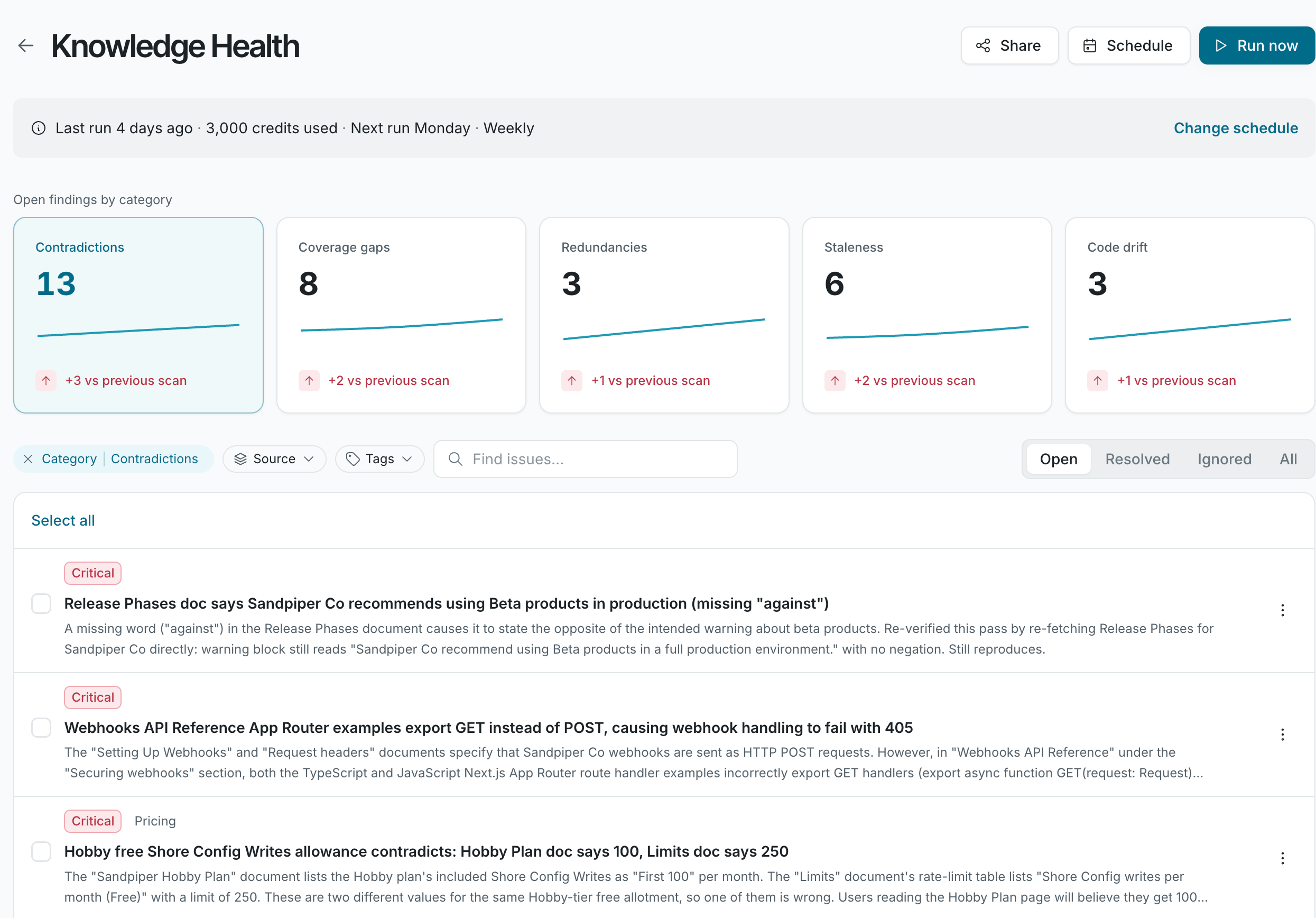
Section titled “What the page shows”- Run banner: the status of the latest scan. See Run status.
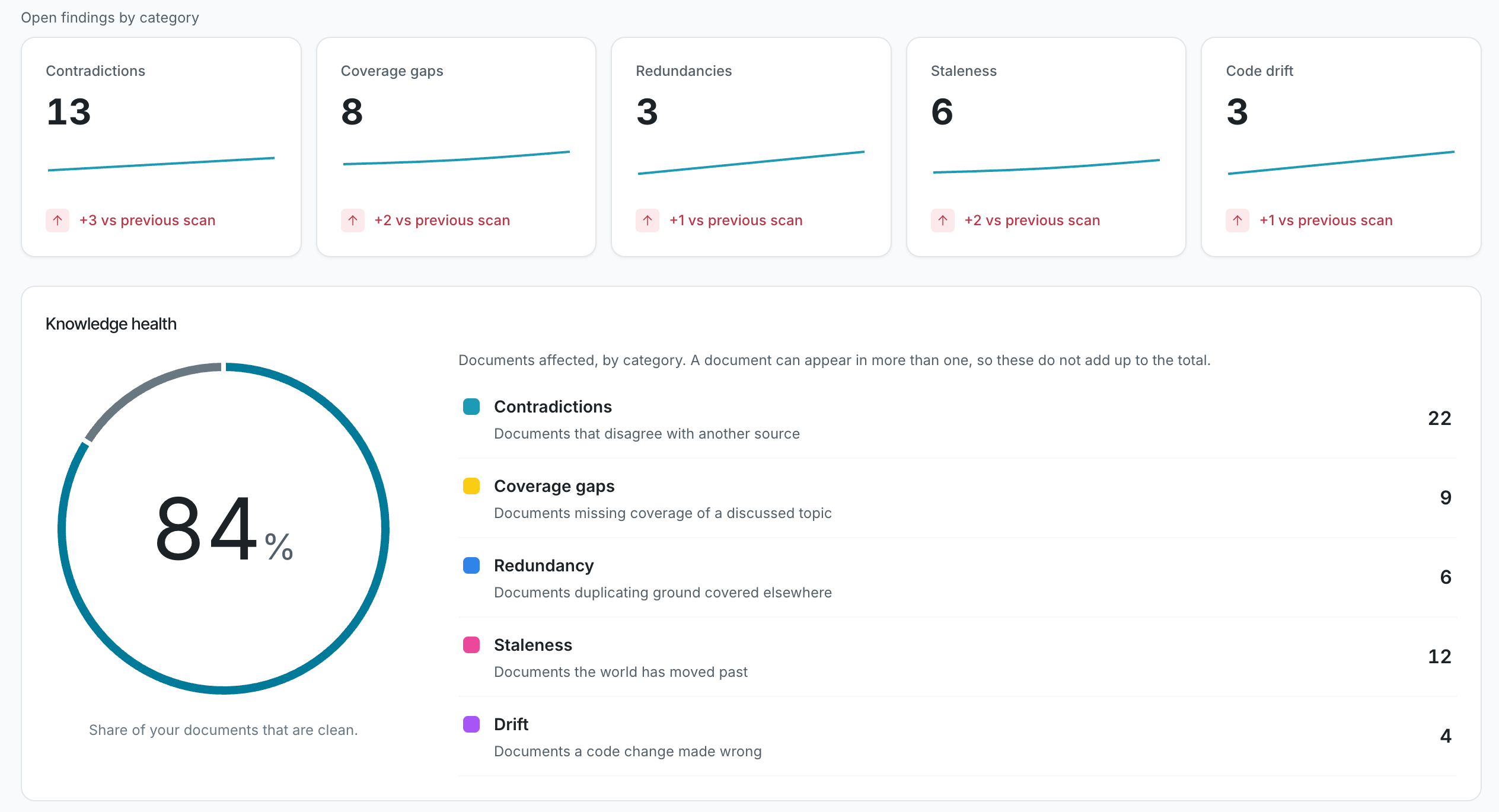
- Open findings by category: a count for each category, with the change since the previous scan. Click a category to list its findings.
- Knowledge health: a chart with the share of your documents that are free of issues, meaning examined documents with no open finding, and the number of documents affected in each category. A document can have more than one kind of problem, so the category counts can add up to more than the number of affected documents. The donut shows Not scored yet until at least 10 documents have been examined.
- Findings list: each finding with its severity, title, and summary. Filter it with Open, Resolved, Ignored, or All.
Findings appear while a scan is running, so you can start reviewing before it finishes.
Run status
Section titled “Run status”| Status | What it means |
|---|---|
| Knowledge Health queued | Other scans are ahead of yours. It starts on its own. |
| Knowledge Health running | A scan is in progress. The banner shows progress, elapsed time, and credits used so far. |
| Knowledge Health paused | Credits ran out. The scan resumes when credits are added. See Knowledge Health credits. |
| Last run and Next run | No scan is active. The banner shows when the last scan ran, the credits it used, and when the next scheduled scan starts. |
