# Create a skill doc
A skill doc is a normal Falconer document marked as **Type: Skill**.
Use skill docs for repeatable instructions, checklists, review flows, and team-specific workflows. When you reference a skill in Falconer chat, Falcon reads the skill doc's Markdown and uses it as context for the current task.
## When to create a skill doc
Create a skill doc when your team has a workflow that should run the same way every time, such as:
- Generating a weekly report from pull requests, meetings, memories, and Slack threads
- Reviewing a rollout plan against your team's launch checklist
- Writing release notes in your team's preferred format
- Turning incident notes into a postmortem
- Checking a draft against an internal style guide
- Summarizing customer feedback with a standard set of themes
Skill docs work best when they are specific. Instead of writing a broad doc like "How to write good docs," write a focused skill like "Generate weekly report."
## Write the skill
Start by creating a regular Falconer document. Give it a clear title that describes the workflow.
A useful skill doc usually includes:
- **When to use it** -- the task or situation the skill is for
- **Inputs** -- what Falcon should look at before doing the task
- **Steps** -- the checklist or process Falcon should follow
- **Output format** -- how Falcon should structure the response or draft
For example:
```markdown
# Generate weekly report
Use this skill when writing a weekly team report for a specific date range.
Before writing, search for relevant pull requests, meeting notes, stored memories, and Slack threads from the requested week.
Include:
- shipped work
- in-progress work
- blockers or risks
- important decisions
- follow-ups for next week
Respond with:
1. A short executive summary
2. Bullets grouped by theme
3. Links or citations to the source material Falcon used
```
## Mark the doc as a skill
After you write the document, mark it as a skill:
1. Open the document in Falconer.
2. Click the more button in the top-right corner.
3. Select **Details**.
4. In **Properties**, open the **Type** menu.
5. Select **Skill**.
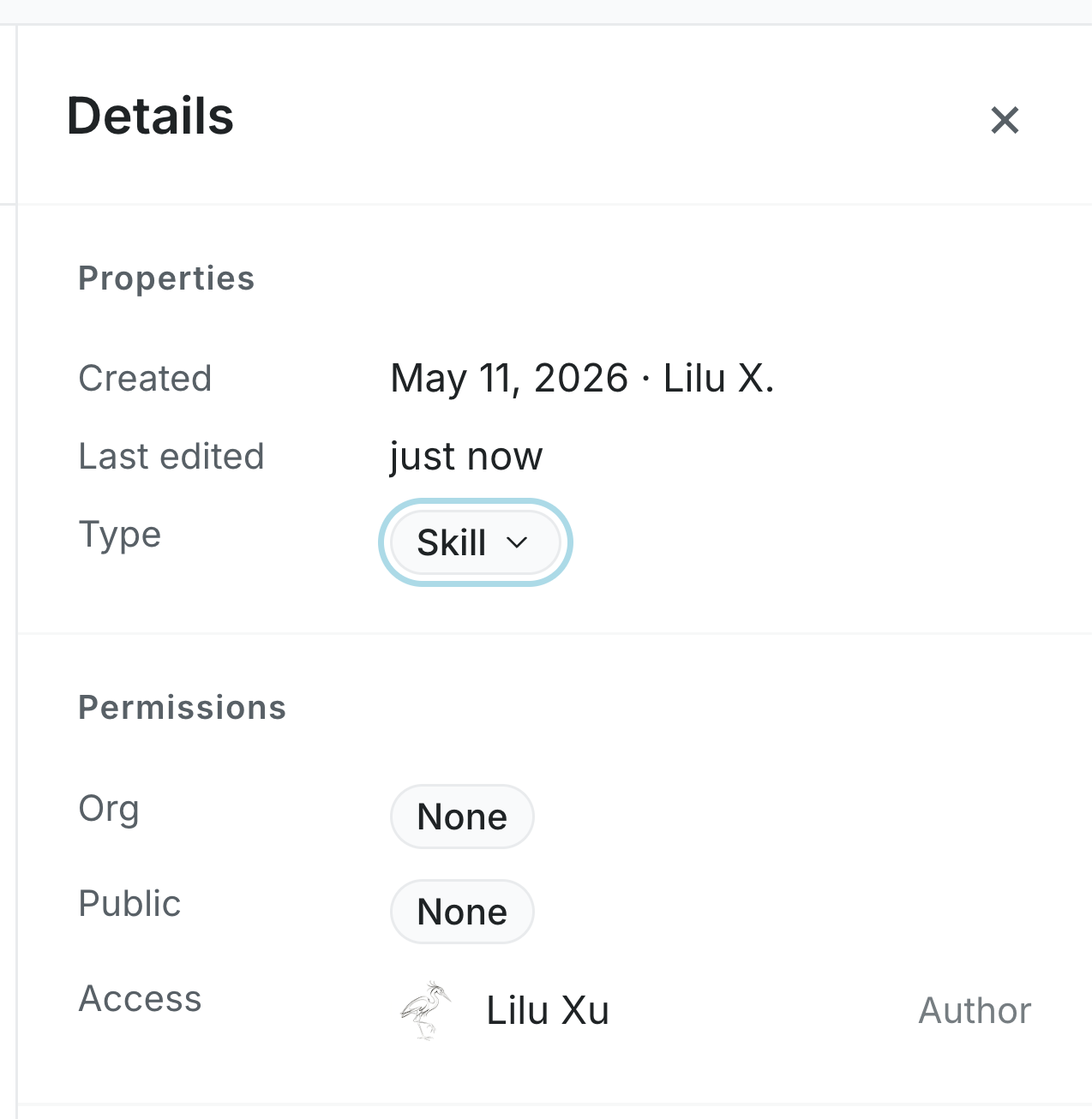 You need edit access to the document to change its type. If you do not see **Skill** as an option, skill docs may not be enabled for your organization.
## Use a skill in chat
You can use a skill from Falconer chat on the homepage or in the document editor.
1. Open Falconer chat.
2. Click **+** and select **Skills**.
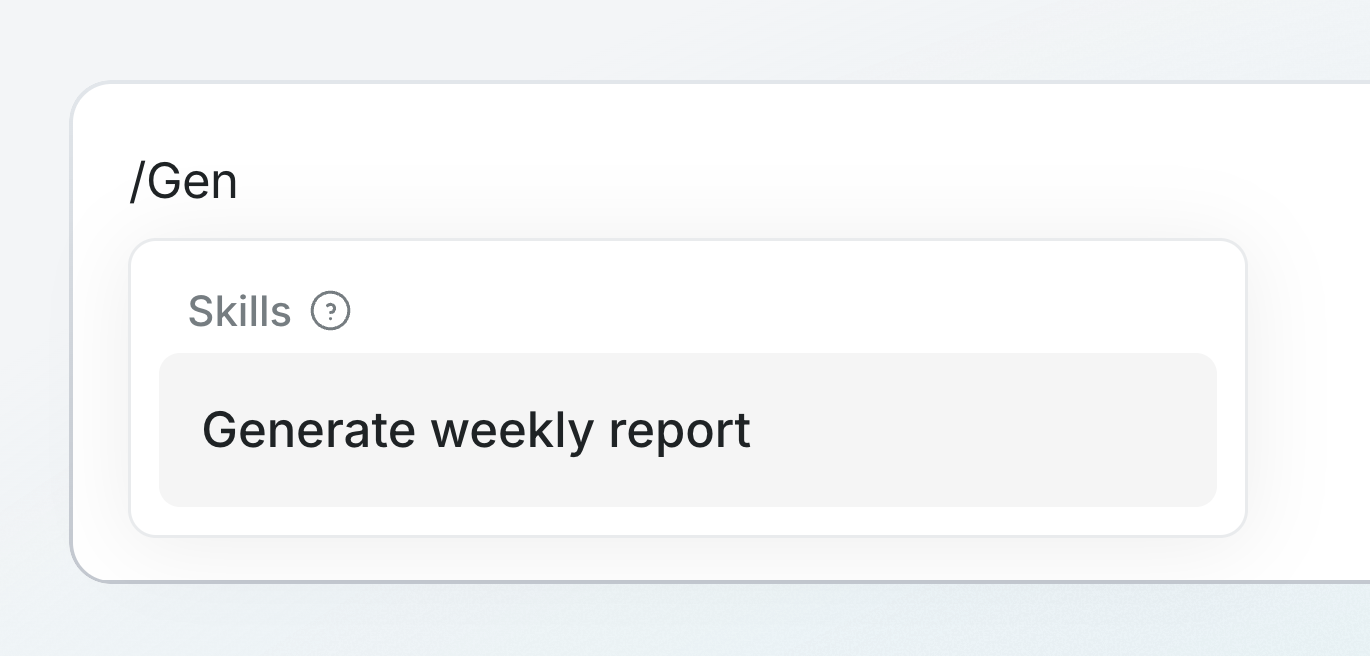
Or, type **/** and start searching for the skill by name, such as `/Gen`.
3. Select the skill.
4. Add the task you want Falcon to complete.
You need edit access to the document to change its type. If you do not see **Skill** as an option, skill docs may not be enabled for your organization.
## Use a skill in chat
You can use a skill from Falconer chat on the homepage or in the document editor.
1. Open Falconer chat.
2. Click **+** and select **Skills**.
Or, type **/** and start searching for the skill by name, such as `/Gen`.
3. Select the skill.
4. Add the task you want Falcon to complete.
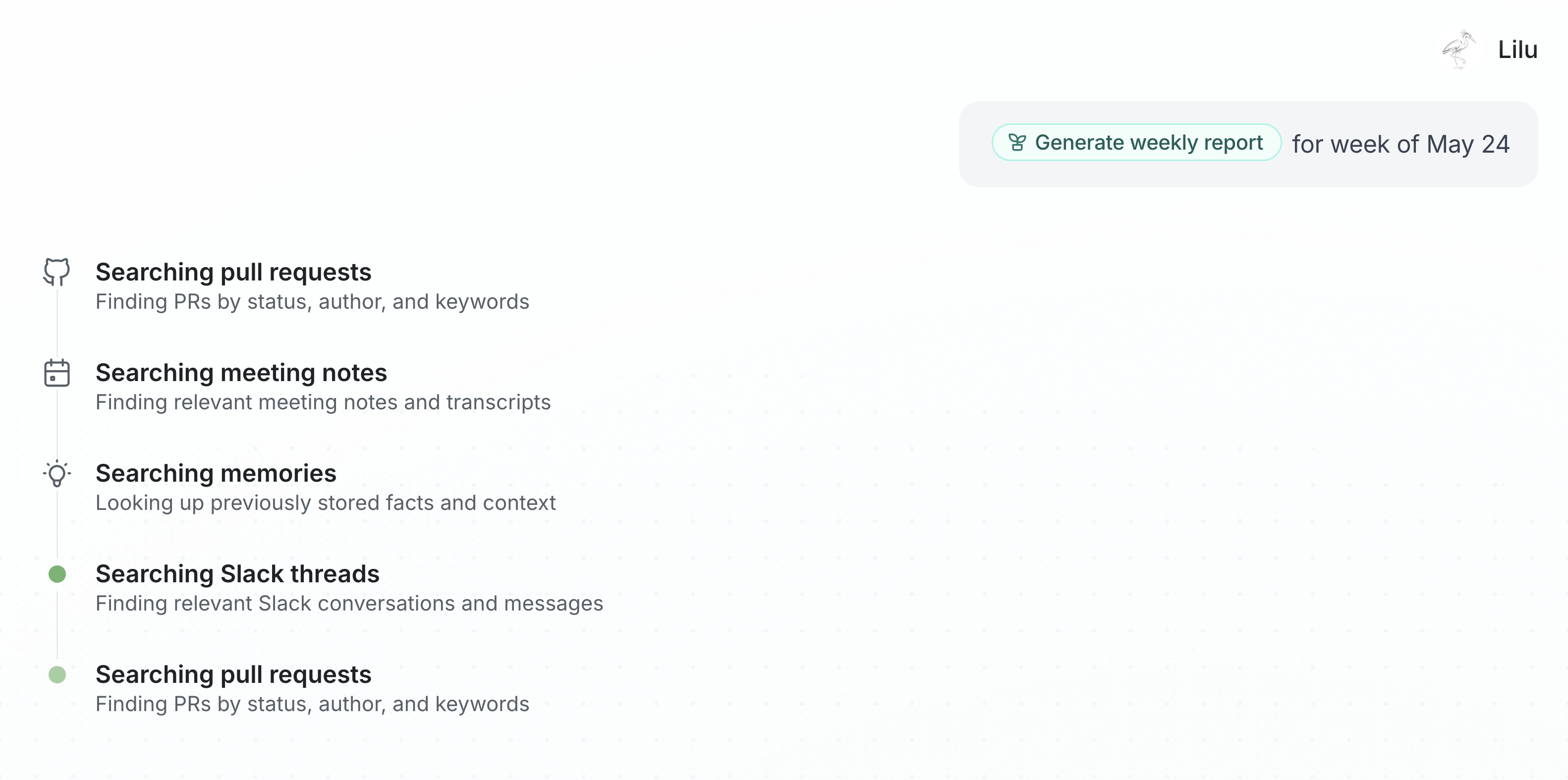
 For example, after selecting **Generate weekly report**, add the date range:
```markdown
for week of May 24
```
The selected skill appears as a reference in your message. Falcon receives the skill doc's Markdown as context, then follows the workflow described in the skill. For the weekly report example, Falcon searches pull requests, meeting notes, memories, and Slack threads before drafting the report.
For example, after selecting **Generate weekly report**, add the date range:
```markdown
for week of May 24
```
The selected skill appears as a reference in your message. Falcon receives the skill doc's Markdown as context, then follows the workflow described in the skill. For the weekly report example, Falcon searches pull requests, meeting notes, memories, and Slack threads before drafting the report.
 ## Manage skill access
Skill docs use normal Falconer document permissions.
People can only find and use skill docs they can view. To share a skill with more teammates, update the document's sharing settings or publish it where the right people can access it.
To update a skill, edit the original document. Falcon uses the latest version the next time someone references it.
To stop using a document as a skill, open **Details**, change **Type** back to **Document**, or archive the document.
## Manage skill access
Skill docs use normal Falconer document permissions.
People can only find and use skill docs they can view. To share a skill with more teammates, update the document's sharing settings or publish it where the right people can access it.
To update a skill, edit the original document. Falcon uses the latest version the next time someone references it.
To stop using a document as a skill, open **Details**, change **Type** back to **Document**, or archive the document.